Your profile has a personal calendar link. Subscribe to it once in Google Calendar or Outlook and your PiCortex work appears there, next to everything else in your day, on your computer and your phone.
What shows up
- Jobs you lead or are part of the crew on, at their scheduled time, with the site and its address. A job with a date but no time shows as an all-day event.
- Appointments you're attending.
- Tasks assigned to you, on the day they're due (as all-day events).
It covers last week and the next two months. Cancelled and draft jobs, cancelled appointments, and completed, cancelled or draft tasks aren't included.
The calendar only shows your PiCortex work. Changes go one way: edit a job in PiCortex, not in your calendar.
Subscribe
- Go to Settings > Your profile.
- In the Calendar card, click Create calendar link.
- Click Open in Google Calendar or Open in Outlook, and confirm the subscription in the window that opens.
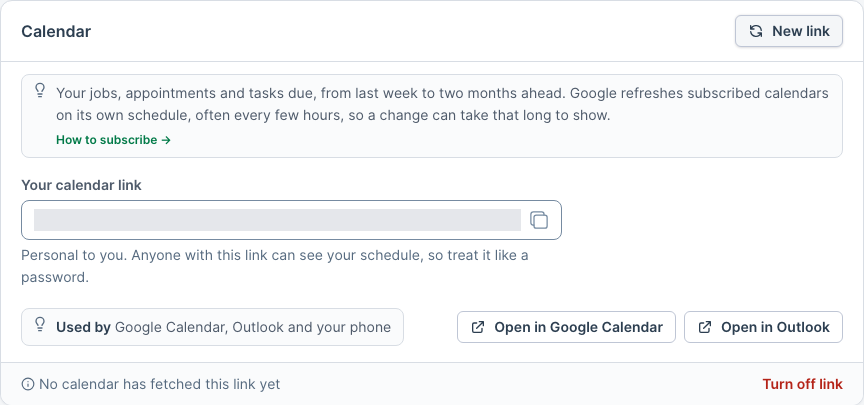
Using another calendar app, such as Apple Calendar or Outlook.com? Click the copy button next to Your calendar link, then add a calendar "from URL" (sometimes called "subscribe") in that app and paste the link.
On your phone (PiCortex app)
- Open Settings > Calendar.
- Tap Create calendar link.
- On an iPhone, tap Add to iPhone Calendar, then Subscribe in the window that opens. For Outlook (Microsoft 365), tap Open in Outlook.
Google Calendar can only add a calendar from a link on a computer. Tap Share link to send it to yourself, then add it from Google Calendar on a computer (Other calendars > From URL). It then shows on your phone too.
Once your calendar on your computer is subscribed, it usually appears on your phone too, as long as the phone uses the same Google or Microsoft account.
Changes aren't instant
Google refreshes subscribed calendars on its own schedule, often every few hours, and you can't make it go faster. Outlook works the same way. A job you move in PiCortex moves in your calendar the next time it checks. The Calendar card shows when a calendar last fetched your link.
Keep your link private
Anyone who has your link can see your schedule, including customer names and site addresses, without signing in. Treat it like a password: don't post it in a group chat or email it to anyone.
If you shared it by mistake, click New link in the Calendar card. The old link stops working straight away. Calendars subscribed to the old link stop updating until you subscribe them to the new one.
To stop sharing your schedule completely, click Turn off link.
My calendar is empty
Your PiCortex account needs to be linked to a team member, because that is how PiCortex knows which jobs and tasks are yours. If the Calendar card says your account isn't linked, ask an admin to link you under Team.
If it is linked and the calendar is still empty, check that you have jobs, appointments or tasks in the next two months, then wait for your calendar's next refresh.