Applying for funding
PiCortex can pass a working capital application to a funding partner on your behalf, using the trading history and business details you already keep here. You do not retype your company into somebody else's form.
Open Funding from the sidebar.
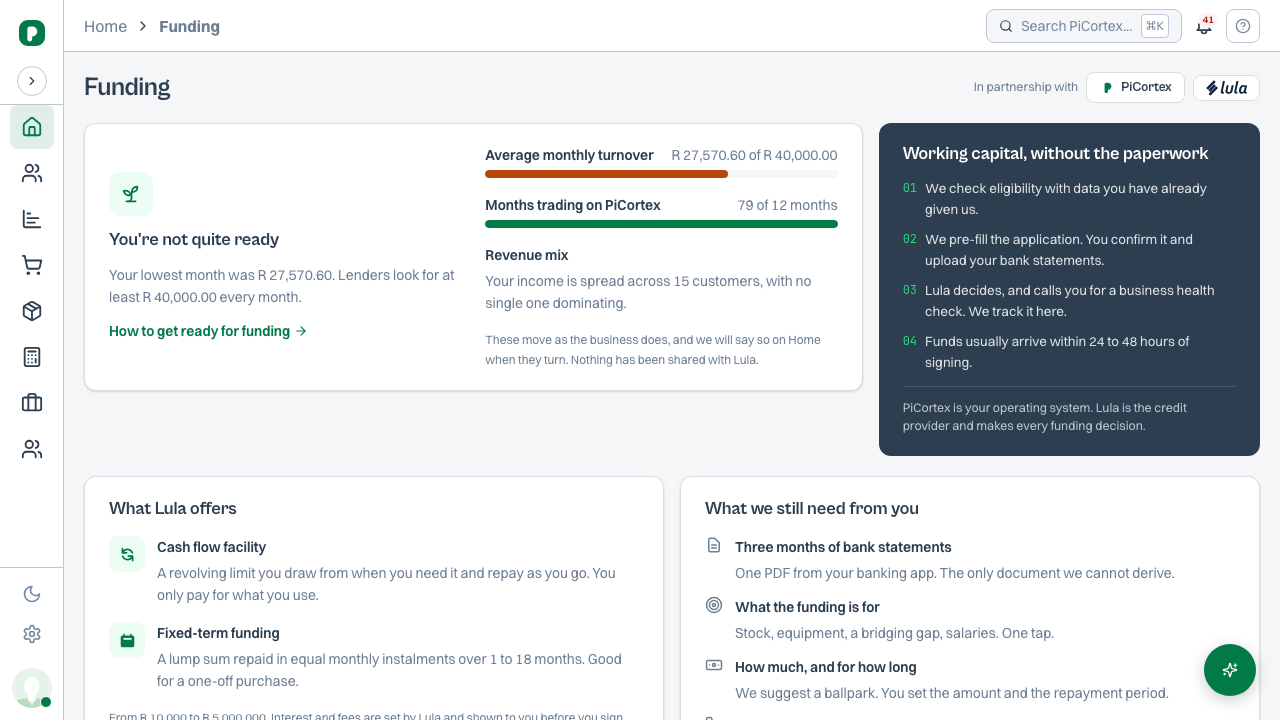
Before you apply: are you likely to qualify?
The Funding screen opens with a check against what the partner looks for, assessed from the business you already run in PiCortex. It shows three signals:
| Signal | What it means |
|---|---|
| Monthly turnover | Whether every month clears the partner's floor — not the average. One strong month does not carry two weak ones, because the partner reads the same three months of bank statements you upload. |
| Months trading | How long the business has been operating. |
| Revenue mix | How concentrated your income is. A large share from one or two customers is something their credit team looks at. |
Green means the signal clears. Amber means we could not work it out from your record — not that the answer is bad. It never blocks you on its own. Red means the signal does not clear.
If the check says Likely to qualify, you also see a ballpark amount. It is an estimate from your own figures, not an offer.
If it says Not yet, you can still read what is short. The fastest way to change an amber signal is usually to make sure your invoices and payments are up to date in PiCortex, since that is what the signal is read from.
What you need before you start
- Three months of bank statements, as a single PDF, no larger than 16 MB. It must be the bank's own export for the business account — a screenshot, a photo or a spreadsheet will not do — ending no more than 30 days ago, with every page in the one file. Step 4 lists all of this before you choose, and tells you the file's size and how many pages it has once it is attached.
- At least one director on your business record.
- Your bank account on your business record, if you want to be paid without a delay.
All three live in Settings → Business. See Your business record.
The five steps
Choose Start your application. The form has five steps and remembers your answers as you move between them.
- About the business — mostly filled in already, from your business record. The form tells you how many things it filled in. Check them rather than retype them; corrections you make here do not change your record. Below the card, the parts of the business address the partner requires and your record may not hold: a second line (a unit, building or park), the suburb, the city and the province. If your record's address was typed rather than picked from the search, it is shown as one line for you to trim down to the street.
- About you — the director who is applying, shown from your business record rather than asked for again. Below the card, what the record does not hold: your title, your home address, and when you moved in.
- What you need — the amount, over how long, and what for, with an estimate of the repayments that updates as you choose. You are also asked whether you have other short-term funding still being repaid.
- Bank statements — the PDF. Drag it onto the page or browse for it.
- Review and send — everything that is about to be sent, each section with its own Edit link, and two things to agree to. Nothing leaves PiCortex before you press Send application to the partner.
Why step 2 shows you rather than asking you
The person applying is a director on your business record, so their name, contact number, email and ID number are already on file. Step 2 shows them for checking and sends you to Settings → Business → Directors and shareholders to correct anything — which fixes it for every future application too, not just this one.
Your ID number is not editable there or here, and cannot be: PiCortex masks it to the last four digits everywhere it is shown, so your browser never holds the full number. It is read from your record at the moment the application is sent.
Three things the partner needs that no record holds are still asked for: your title, your home address (your business record holds your company's address, which is a different thing) and when you moved in. The partner will not accept a home address without a suburb and a second line (a unit, complex or building), so both are asked for.
What each step needs before it will let you continue
Continue stays switched off until the step has what the partner requires, and the reason is written underneath it — Still needed: the industry and the trade, for example. This is deliberate: the partner refuses an incomplete application in its own vocabulary, several screens after the field that caused it, and that is a poor way to find out.
If a step asks for something that lives on your business record — an ID number, a contact number, an email — the message says so and points at Settings. Your answers here are kept while you go and fix it.
If Send application is switched off
The button is deliberately disabled when the partner would refuse what is on the screen, or when you have not yet agreed to send it. The reason is always shown next to it:
- Your agreement to share this with the funding partner, and your agreement to a credit check. Two separate boxes on step 5, because they are two different permissions: one shares your business's information with another company, the other authorises a credit check against a named person. Neither is ticked for you.
- No bank statements attached. Go back to step 4.
- The funding partner needs at least one director. Directors live on your business record so you enter them once. Add one in Settings → Business → Directors and shareholders; your answers here are kept while you do.
- A registration number like 2019/123456/07. The partner only accepts the CIPC format, and the company it creates cannot be corrected afterwards, so step 1 will not continue with anything else. Fix it in Settings → Business. A close corporation's
CKprefix is fine. A sole trader is not held to this, and can leave the number blank. - The business needs a phone number. The partner requires one, and a cellphone is fine. It comes from your business record, so add it in Company Settings.
- A director needs a first name and surname. The partner refuses a director without both. Add them in Settings → Business → Directors and shareholders.
- A director needs a cell number and email. The partner's credit team contacts every director on the application, so step 5 names anyone without both. Add them in Settings → Business → Directors and shareholders; your answers here are kept while you do.
- A director needs a title. The partner needs a title for everyone on the application, and your business record may not hold one. Pick it on step 5; it applies to the application only.
- A director needs a role the funding partner recognises. Your business record stores the role as it appears on your CIPC certificate, which is right for the certificate but is not one of the roles the partner accepts. Pick the closest one from the dropdown. This applies to the application only and does not change your record — your certificate wording stays as it is.
You may also see a note that there is no bank account on your business record. That does not stop you applying. It means that if you are approved, the partner has nowhere to pay, so adding it now saves a delay later.
Sending is final
Once the partner has your application it cannot be withdrawn or deleted — they have no way to undo it, and neither do we. Step 5 says so above and below the summary, which is why that screen asks twice rather than once.
After you send
Your application appears under Applications on the Funding screen. Open it to see where it stands and everything that has happened to it, newest last.
The list is tabbed: All, Open (anything still in flight), Disbursed and Declined, each with a count. Withdrawn applications appear under All only — nobody reached a decision on them, so filing them under Declined would report one that was never made.
| Stage | What it means |
|---|---|
| Not yet sent | Prepared here, not yet with the partner. |
| Submitted | The partner has it. |
| Checking it arrived | Sent, and we are confirming the partner received it. Usually brief. |
| Being reviewed | Their credit team is assessing it. Expect a call. |
| Paid out | The money has been disbursed. |
| Declined | They have not agreed to fund it. The reason they gave is shown with it. |
| Withdrawn | The application was stopped before anyone decided on it. |
PiCortex checks for updates on its own — you do not need to refresh or chase.
One at a time
You can only have one live application. This is not a PiCortex restriction: holding applications with more than one funder at the same time is a named reason applications are declined, so the screen stops you rather than letting it damage your chances. Withdraw the open one before applying again.
What is shared, and when
Nothing is sent until you press Send application to the partner on step 5. At that point your company details, the applicant's details, your directors and your bank statements go to the funding partner, along with your recorded agreement to share them.
You can see exactly what was shared, and with whom, on Settings → Business → Shared with partners. You can also ask a partner to delete what they hold. Removing a document from PiCortex does not remove it from a partner who already has it, which is why those are two separate actions.