Your business record
Your business record is the single place PiCortex keeps the details that identify your company: registration and tax numbers, the certificates that prove them, your bank account, and your directors.
You capture each detail once. Everything else on the platform reads from here — your invoices, your funding applications, and the onboarding checks a payments partner runs before settling money to you. Correcting a VAT number in one place corrects it everywhere.
Open Settings from the sidebar. Settings is grouped into three: Business, Workspace and Account. Your business record is the Business group, and it holds six screens:
| Screen | What it is for |
|---|---|
| Overview | What is on file, what is missing, and who has it. Start here. |
| Profile and brand | Trading name, contact details, and the logo on your invoices. |
| Compliance documents | CIPC, tax clearance and B-BBEE. |
| Bank and financials | The account on your invoices, plus statements. |
| Directors and shareholders | Everyone on your CIPC certificate. |
| Shared with partners | What each partner holds, and how to ask for it back. |
A dot beside a screen in the list means there is something outstanding there.
Overview
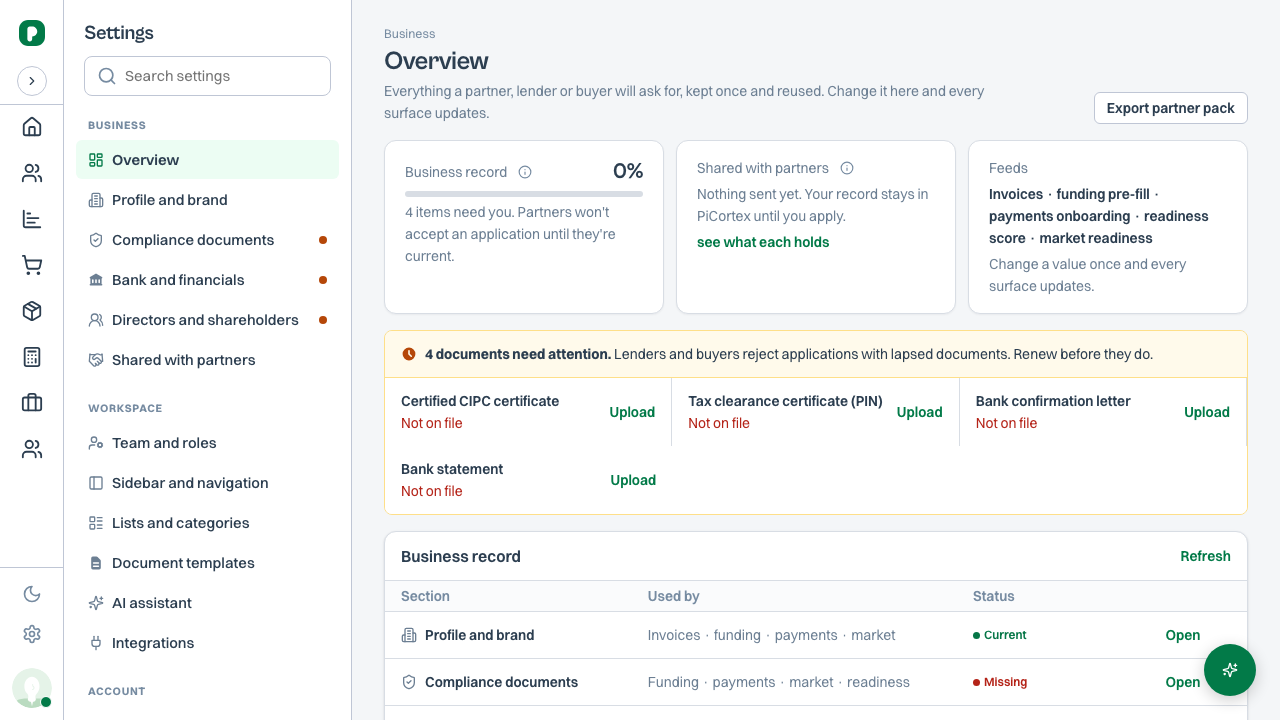
Start here. The cards at the top show how complete your record is, what you have shared with partners, and which parts of PiCortex read from it. Anything that needs attention — a missing or lapsed document — is listed beneath them with an Upload link, because lenders and buyers turn away applications with lapsed documents. The table below lists every section, what reads from it, and whether it is done, so completing your record is a checklist rather than a hunt.
The logo on your documents
The logo you upload under Profile and brand is the one PiCortex prints on your invoices.
A Word template you upload under Settings → Document templates works differently: it prints exactly what is in the Word file, plus the details its placeholders ask for. No logo is added. If you want your letterhead on a contract or a site report, put it in the template itself. See Document templates.
Compliance documents
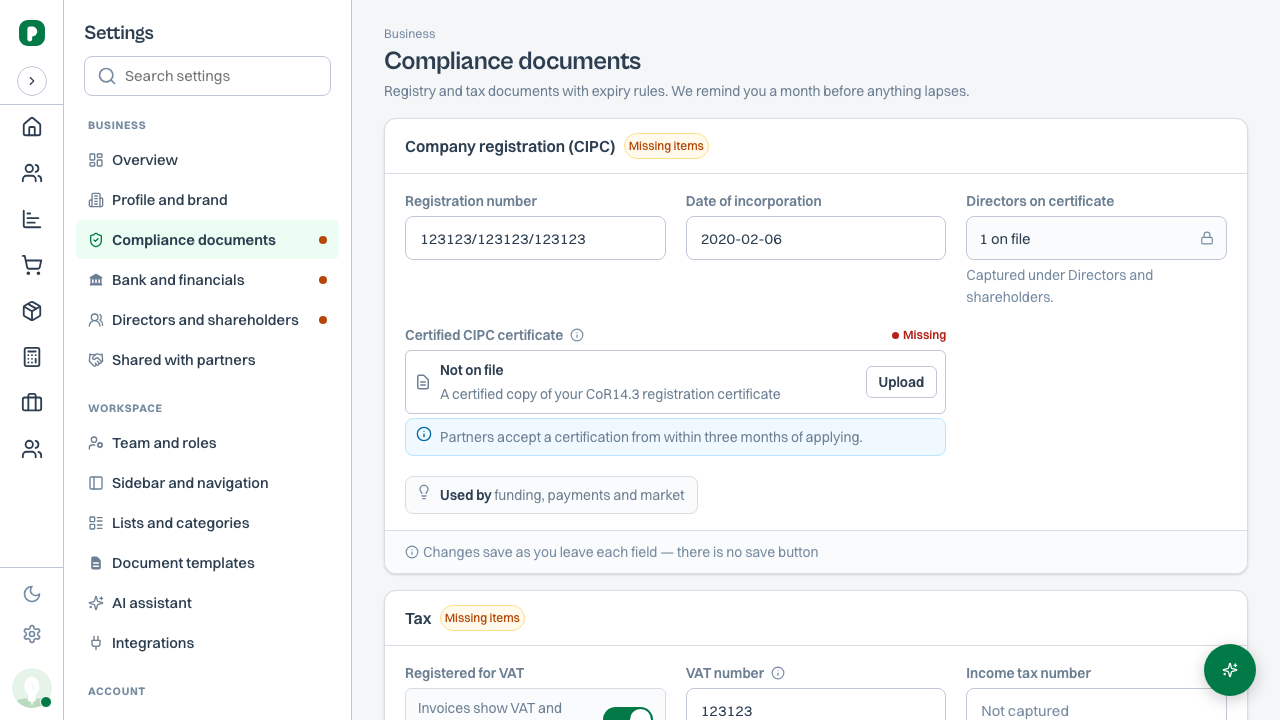
This screen holds your registration and tax position, grouped into three cards.
| Card | What it holds |
|---|---|
| Company registration (CIPC) | Your registration number and a certified copy of your CoR14.3 certificate. |
| Tax | Whether you are registered for VAT, your VAT and income tax numbers, and your SARS tax clearance certificate. |
| B-BBEE | Your contributor level, who verified it, and the certificate or affidavit. |
Each card carries a badge: Complete when nothing is outstanding, Missing items while you still have things to add, and Expired in red only when a document you already had has lapsed. Having nothing uploaded yet is not an error, and PiCortex does not colour it like one.
At the bottom of each card, a Used by note names what reads from it — for your registration, that is funding, payments and market. That is not decoration. It tells you what stops working if the detail is missing or out of date.
Open Settings
Click Settings in the sidebar, then Compliance documents under Business.
Fill in the numbers
Type your registration number, VAT number and income tax number into the fields. Changes save as you leave each field — there is no save button.
Upload the certificates
Each document row has an Upload button. Click it, choose the file, and it is stored against your business.
Replacing and removing are different things
Replace swaps in a newer copy of the same document — a renewed tax clearance, say. Remove takes the document off your record entirely and deletes the stored file, which is what you want if you uploaded the wrong one. PiCortex asks before removing, and names the file so you can be sure which one you are removing. Anything already shared with a funding or payments partner stays with them; removing it here removes it from PiCortex, not from their records.
Some fields are filled in for you
A field with a lock icon is captured somewhere else and shown here for reference. Directors on certificate is one — it counts the people you capture under Directors and shareholders rather than asking you to type the number twice.
VAT and B-BBEE
Two settings on this screen change what other parts of PiCortex do:
- Registered for VAT decides whether your invoices show VAT and your VAT number. Switch it off and invoices are issued without VAT. It also decides how a job's or event's purchase orders and bills count against its budget: without VAT when you're registered, because you claim your suppliers' VAT back, and with the supplier's VAT when you're not, because then it is part of what you pay. The budget on a job, its Costs tab and the activation report's spend slide all follow it, and changing the switch recalculates every job's budget figures. Until you change it, the switch is on if you've entered a VAT number.
- Contributor level is your B-BBEE level as it reads on your certificate or affidavit, including Non-compliant if that is where you are. Verified by is the agency that issued it, or "Sworn affidavit" if you self-declared. Corporate buyers ask for both; funding does not depend on either.
How PiCortex decides a document is out of date
Every document row carries a state, shown as coloured text on the right:
| State | What it means |
|---|---|
| Missing | Nothing on file. |
| Current | On file and accepted. |
| Expiring | Still valid, but not for much longer. Replace it before it lapses. |
| Expired | Past its date. Treat it as missing — an application will stop on it. |
Two different rules produce those states, and the difference matters:
- Documents that carry their own end date — a tax clearance certificate, a B-BBEE certificate — expire on the date printed on them. PiCortex warns you 30 days ahead.
- Documents that never formally expire, but that nobody accepts when old — your CIPC certificate, a bank confirmation letter, bank statements. Your company registration does not lapse, but the certification of the copy ages. Partners generally want one issued within the last three months, so PiCortex treats an older one as stale and tells you to fetch a fresh copy.
Each card spells out which rule applies to it underneath the document, so you do not have to remember.
Getting help on a term
Anywhere a term has a rule behind it, there is a small ⓘ beside the label. Click it and PiCortex explains the term in a sentence or two, with a worked example where money is involved. It is the same explanation everywhere the term appears, so "settlement" means the same thing in Payments as it does here.
Shared with partners
Once you submit a funding application, this screen records exactly what went, to whom, and when. You can ask a partner to delete what they hold; they confirm within 30 days. Removing a document from PiCortex does not remove it from a partner who already has it, which is why the two are separate actions.
Bank and financials
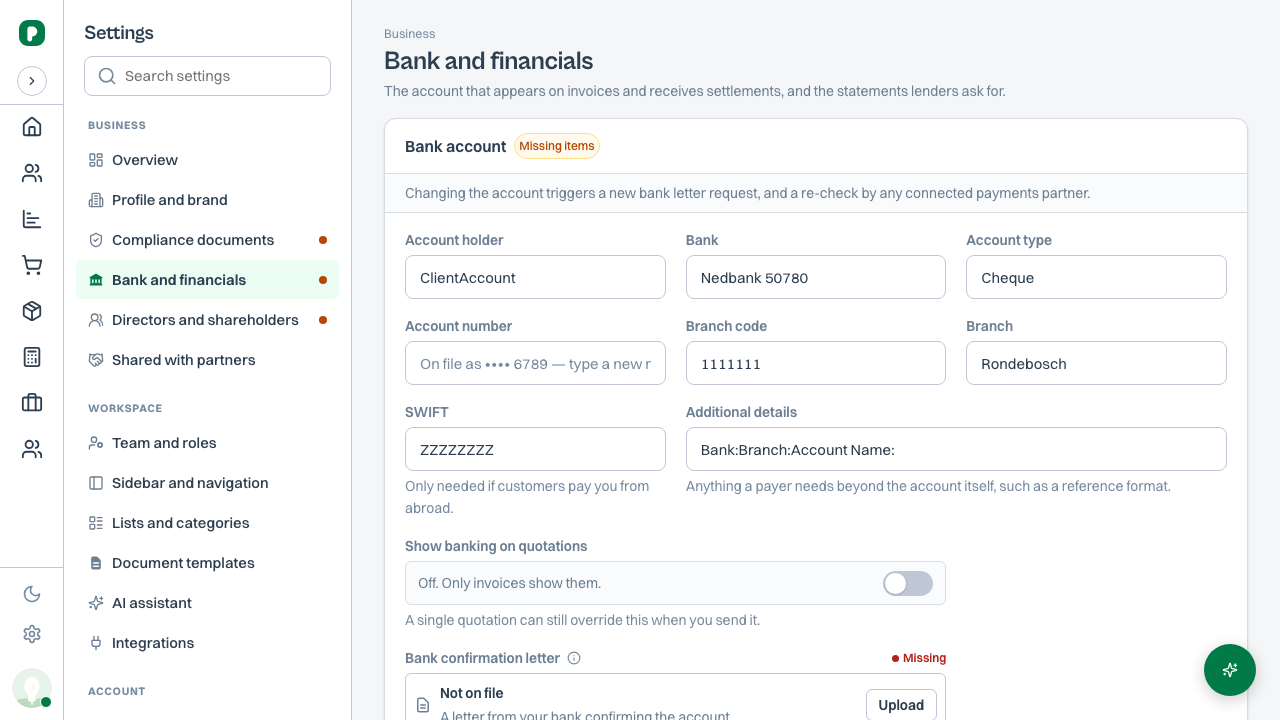
The account that appears on your invoices and receives settlements, plus the financial statements a lender asks for.
Fill in the account holder, bank, account type, account number, branch code and branch. SWIFT is only needed if customers pay you from outside the country, and Additional details holds anything else a payer needs, such as a reference format.
Show banking on quotations stays off until you switch it on, so only invoices carry your bank details. Switch it on to print them on quotations too; a single quotation can still override this when you send it.
Your account number is never shown in full again
Once saved, PiCortex displays only the last four digits. The full number is kept for settlement and is not sent back to your browser, so nobody reading over your shoulder — or anyone who reaches your screen — can copy it.
Changing a saved account triggers a new bank letter request and a re-check by any connected payments partner. This is deliberate: a changed settlement account is exactly what a partner needs to verify before sending money to it.
Below the account, upload your bank confirmation letter and your last three months of bank statements. Both are judged on freshness rather than an expiry date — three months old is the usual limit.
Directors and shareholders
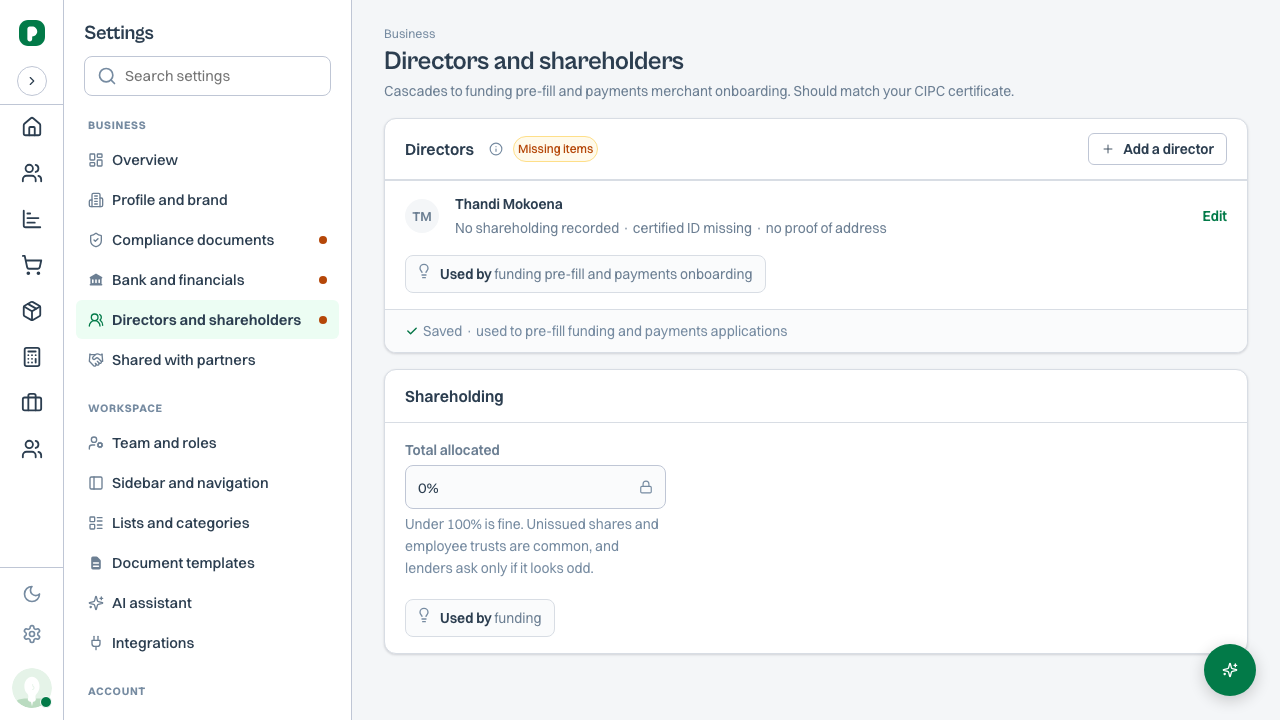
Capture each director once, and PiCortex uses them to pre-fill funding applications and payments onboarding. This is the screen that stops you typing the same four people into every application — and stops a second typing creating a company record on the partner's side that disagrees with the first.
Add a director
Click Add a director in the top right of the Directors card.
Enter their details
Give their title, first and last name, ID number, and shareholding percentage. Funding partners need the title, so it saves you being asked for it on every application.
Upload their documents
A director needs a certified copy of their ID, and a proof of address. Both are uploaded from the same panel.
Save
Click Add director. They appear on the list, with a line summarising their shareholding and which documents are still outstanding.
Each row tells you what is missing at a glance — "10% shareholding · certified ID missing · no proof of address". A director with a certified ID on file is marked Verified.
To change or remove someone, click Edit on their row.
ID numbers are masked, like account numbers
PiCortex shows only part of a saved ID number. The full value is kept for applications and never sent back to the browser.
Shareholding under 100% is normal
The Shareholding card totals what you have allocated. It is common for that total to come to less than 100% — unissued shares and employee trusts both do it — and PiCortex does not treat it as a problem. Lenders only ask if the split looks odd.
What PiCortex will refuse is a total over 100%, because that cannot be true of any company.
What "ready for lending" means
As you complete the record, PiCortex works out whether you could submit a funding application today. It needs, at minimum:
- A registration number and a certified CIPC certificate
- A tax clearance certificate that has not lapsed
- A bank account, a confirmation letter, and three months of statements
- At least one director, with a certified ID
Anything missing or expired is listed for you, so the work is a checklist rather than a guess. Getting ahead of the Expiring warnings is the difference between applying on the day you need funding and spending a week chasing SARS for a document you could have renewed a month earlier.