Send Task Photos on WhatsApp
Crews in the field can send photos, videos and voice notes to the PiCortex WhatsApp number. If the message includes the task ID, everything is saved onto that task. It works on a weak signal too: WhatsApp holds the message on the phone and sends it when the signal comes back.
Before you start
- Your company admin turns on WhatsApp evidence capture under Settings > AI assistant. It doesn't need the AI assistant to be switched on.
- Your WhatsApp number is verified on your team member profile.
- The task is assigned to you. Staff with full access can also send to other tasks they can edit.
Every task has an ID that starts with TSK, for example TSK1234. In the app it's shown above the task's title and on each row of your task list. On the web it's in the task's header. It's also in the WhatsApp message you get when a task is assigned to you.
Sending photos to a task
- Open the chat with the PiCortex WhatsApp number.
- Pick the photos you want to send.
- In the caption, type the task ID, for example
TSK1234. You can add a comment after it:TSK1234 mast damaged on north side. - Send.
A few seconds after your last photo, PiCortex replies once for the whole send:
Saved 3 photos to TSK1234 — Site survey (Job 10075).
When you send several photos at once, WhatsApp puts the caption on the first one only. That's fine: photos sent without a caption in the next 10 minutes go to the same task.
If a photo is slow to upload and arrives after that reply, you get one more line for it:
Saved 1 more photo to TSK1234 — Site survey (Job 10075). 4 photos in total.
You can also send the task ID on its own first, then the photos. Write it as TSK1234 or task 1234: a number on its own in a text message goes to the AI assistant as usual.
Other ways to write the ID
These all work: TSK1234, tsk 1234, task 1234, task #1234, or just 1234 on its own. To file against a job, write the job number, for example job 10075. If the job has more than one open task, PiCortex asks which one.
Voice notes
WhatsApp voice notes can't have a caption, so they go to the task you last sent to:
- send the voice note within 10 minutes of photos you've saved to the task, or
- send the task ID on its own first (
TSK1234), then the voice note.
If your company uses the AI assistant and has AI credit left, the voice note is also written out as text on the task. A voice note sent any other time goes to the AI assistant as usual.
Adding your location
Share your location in WhatsApp (Attach → Location) within 10 minutes of sending the photos. The location is saved with them, with a link to the map, and PiCortex confirms:
Location added to TSK1234 — Site survey (Job 10075).
If the ID is missing or wrong
If you forget the ID, or the ID doesn't match a task you can add to, PiCortex replies with your open tasks:
I couldn't find TSK9999. Which task is this for? Reply with a number:
- TSK1234 — Site survey (Job 10075)
- TSK1240 — Install CPE (Job 10080) Or reply with the task ID, like TSK1234.
Reply with the number, for example 1, and your photos are saved to that task. Reply cancel if they weren't meant for a task.
Where to find the photos
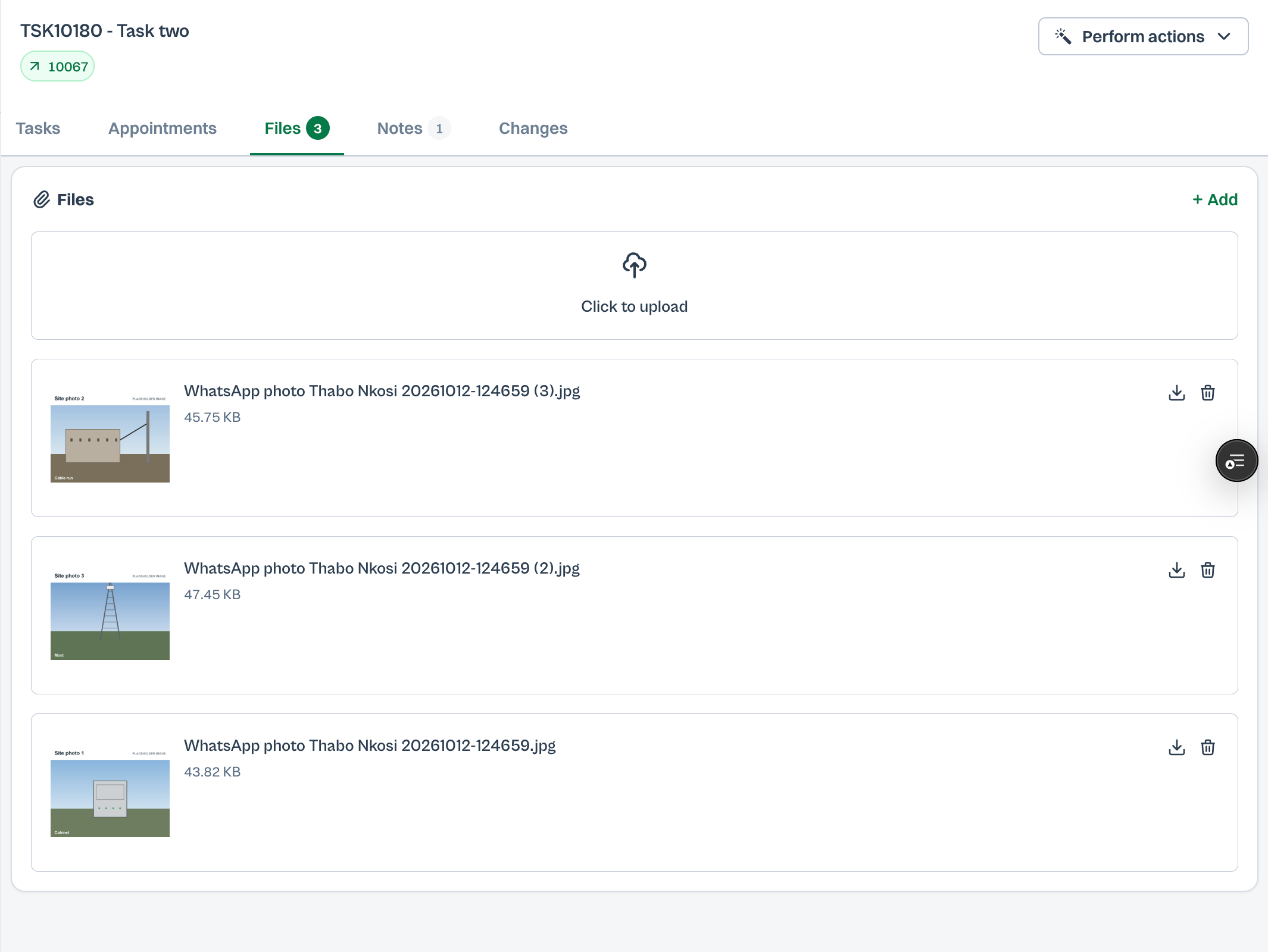
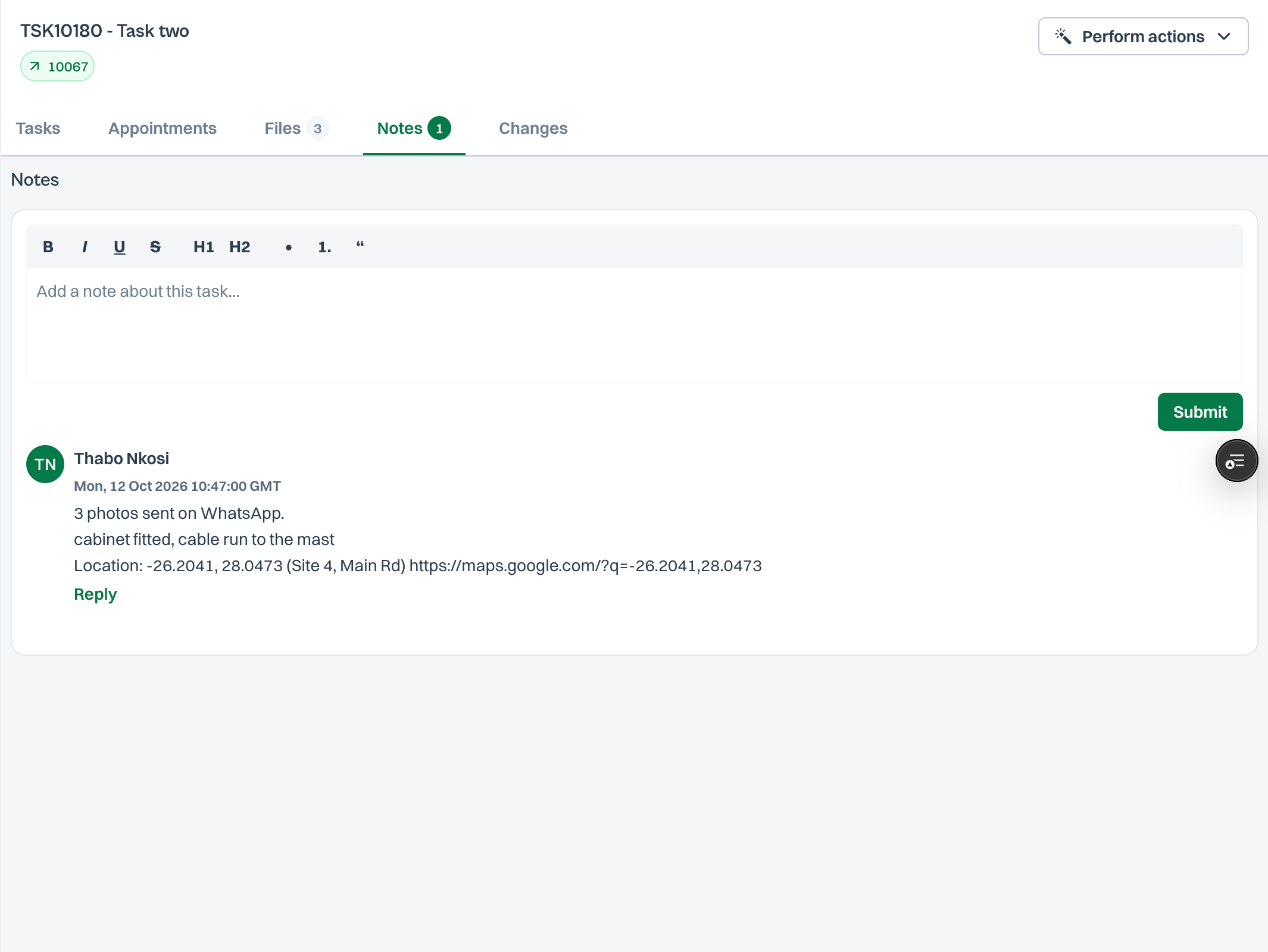
Each send becomes one note on the task under your name: how many photos you sent, your comment, the voice note's words and your location. The photos are named after you and the time, for example WhatsApp photo Thabo Nkosi 20261012-124659 (2).jpg.
- In the app, open the task's Activity tab. The photos are shown with the note they came with.
- On the web, open the task. The photos are on the Files tab and the note is on the Notes tab.
Good to know
- Photos sent without a task ID, and with nothing sent to a task in the last 10 minutes, go to the AI assistant as usual. For example, a fuel slip for it to read.
- If PiCortex asks which task and you don't answer, photos you send more than 2 minutes later go to the AI assistant as usual, and the question is dropped.
- Technicians see and send photos to their own tasks unless an admin sets their Data Access to Full on their team member profile.