See what people said: the Summary
Open a form and go to its Summary tab. A form with responses opens there; a new one opens on Details.
The AI summary
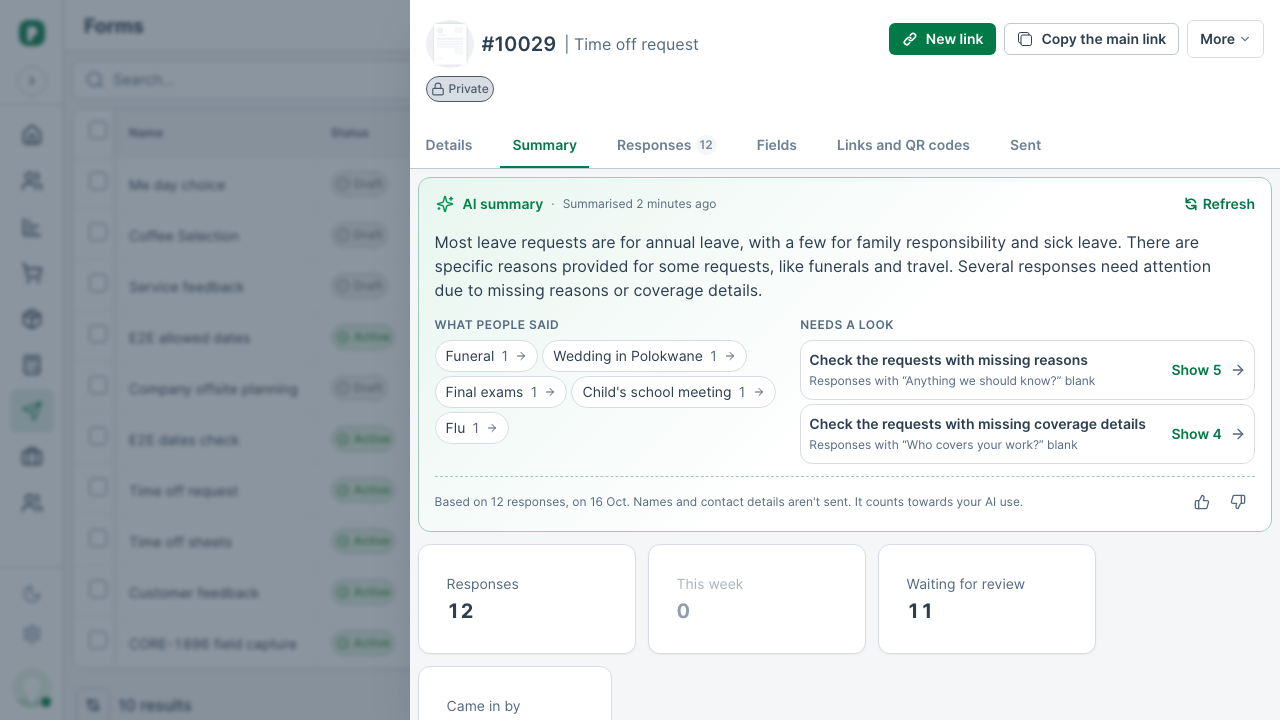
Once a form has 3 or more responses, an AI summary card sits at the top of the Summary tab. Opening the tab doesn't make one: choose Summarise when you want it. It counts towards your plan's AI use. While it reads the responses you can choose Stop; it's kept, so asking again is instant.
The summary starts with a few sentences on what people said, with the numbers in bold; they're the same numbers as the cards below it. What people said lists the themes with how many responses mention each; a theme that is one exact answer opens those responses. Needs a look lists what's worth checking, each with Show to open the responses it's about. None of them changes anything.
The summary is kept for everyone who can see the form's responses. When new responses come in it says so; choose Refresh for a new one. Use the thumbs at the bottom to say whether it helped; your rating is kept. Names, email addresses, phone numbers and business names aren't sent to the AI, and neither are signatures, photos or locations. With fewer than 3 responses, the card lists what those people said instead.
If AI isn't available for a while, the card says so and nothing is charged. A summary you already had stays on screen; choose Try again later.
The numbers
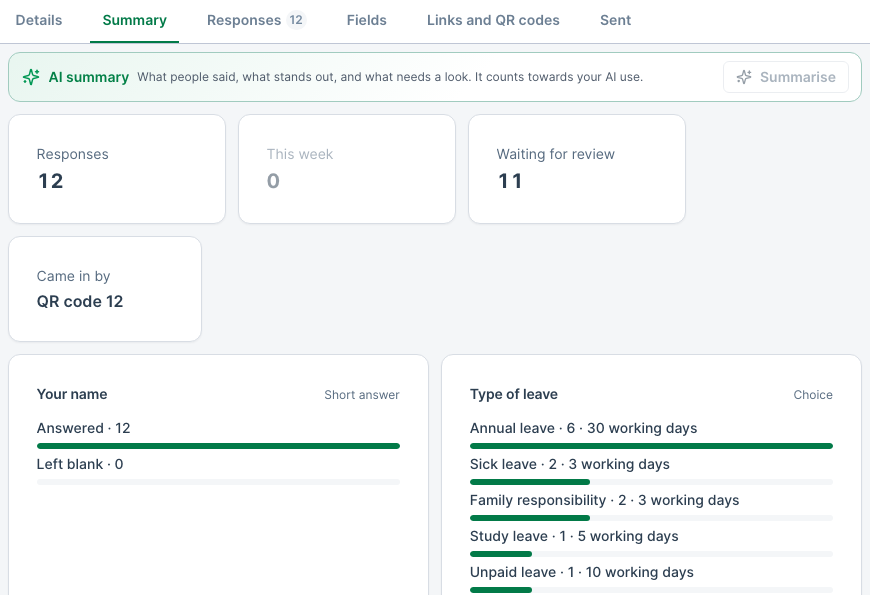
At the top are the headline numbers: Responses, how many came in This week, how many are Waiting for review (New, on a form without a review step), and where they came from (a QR code or a link you sent).
Below them, every question has a card, drawn by what it asks:
- Choice: how many picked each option. If the form also asks a number (like working days), each option shows its total too.
- Number, money, percentage: the total, the average and the highest answer.
- Date: how many answers fall in each week. A First day and Last day asked one after the other become one card of how many people are away each week.
- Short and long answers: how many answered and how many left it blank, with the latest long answers.
- Star rating: the average out of 5, and how many gave each number of stars.
- Likely to recommend: the recommend score, from −100 to +100: the share who would recommend you (9 or 10) minus the share who would not (0 to 6).
- Signature, photos, location: how many answered.
Every count opens the matching responses. Point at one, or tab to it, and it says how many responses it holds and their share, for example "6 responses, 50% of 12. Click to see them." Select Annual leave · 6, or Left blank · 4, or a week, and the Responses tab opens filtered to just those. Show all clears the filter.
When you change a form, answers stay with the version they were given on. A question you only reworded keeps counting all its answers, and its card says what it used to be called. A question you removed, or changed to another type, moves to Earlier questions at the bottom.
PiCortex has a built-in Customer feedback form with a star rating, a recommend question and a comment. It can't be deleted, because older feedback and older feedback links are kept on it.
Invite a Google review
Add your Google review link under Settings → Business. After that, everyone who submits a form that asks for a rating (stars, or 0 to 10) sees Leave a Google review on the thank-you page. It is shown to everyone, whatever score they gave, as Google requires.
Each rating form asks by default. To stop one asking, an administrator opens the form, goes to Details, and under Google reviews switches off Ask for a Google review. The form's Summary shows a Google reviews card only while it asks.