Work through responses
Every response to your forms can be read in three places: on the job it was given on, on the form itself, and in your inbox under Engage → Responses. Wherever you open one, you can assign it, mark it done and download it.
On a job
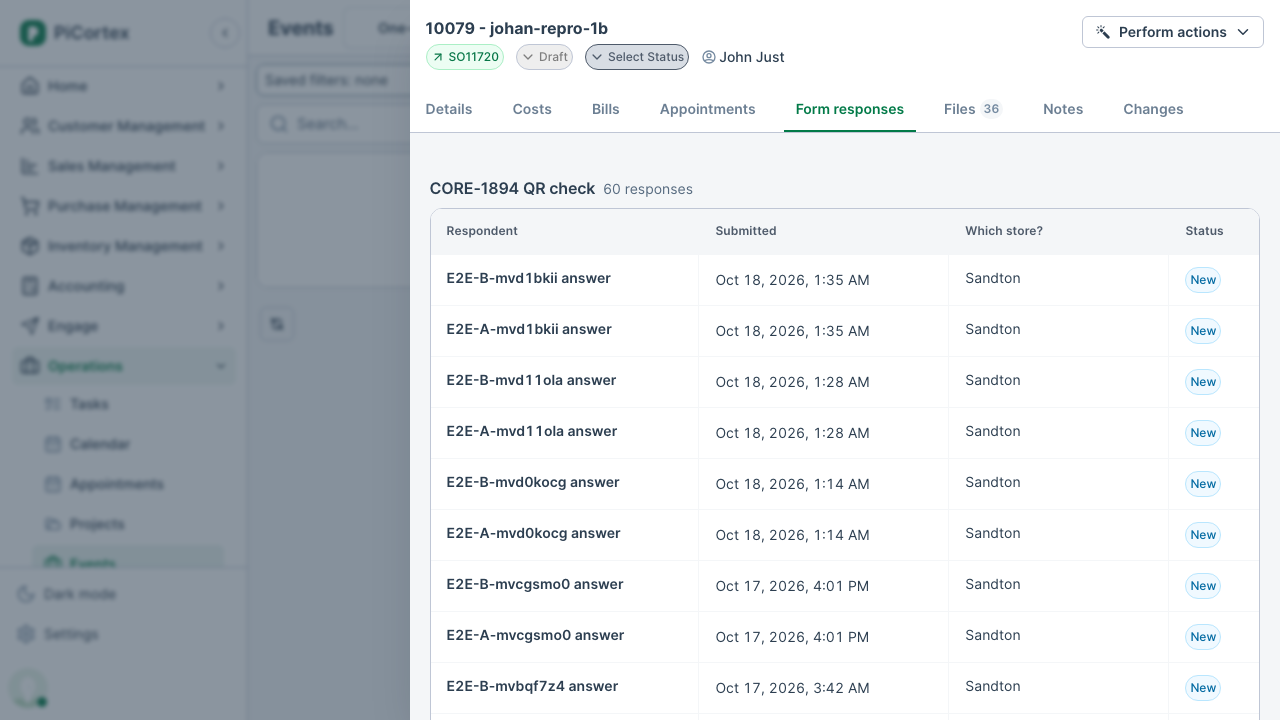
Open the job and go to the Form responses tab. Each form on the job has its own section, headed with its name and how many responses it has. Each person who answered is a row, each question is a column, and Submitted shows when they sent it. Click a row to open that response on its own page. The same page opens from a link or a notification.
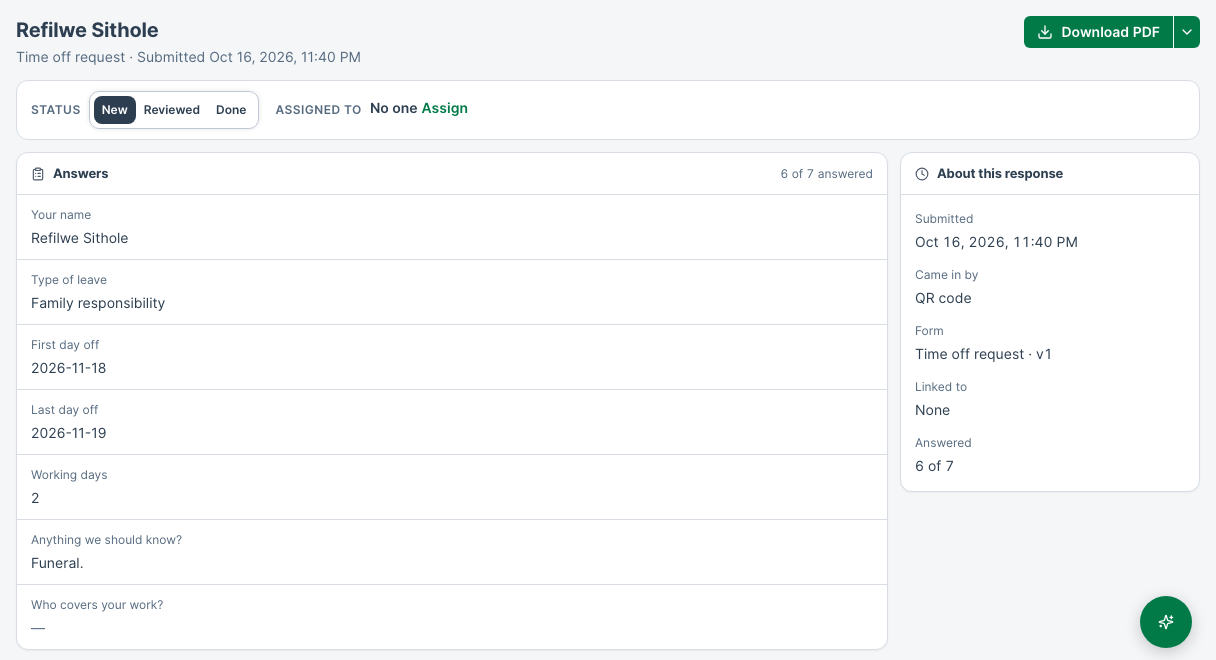
- The way back sits above the name, saying where it goes. Opened from the job's Form responses tab, Back to Job (Back to Event on an events business) and its name returns to that tab; opened from a link, it goes to the job.
- Who answered and when are the title and the line under it. Download PDF is on the right; its arrow offers Markdown and Intake JSON. A draft, or a response you can't open, has no downloads.
- Status and Assigned to sit in a strip under the title, where you change them.
- The answers are laid out as the form asked them, a card per section saying how many were answered. A question they left blank shows a dash, so you can see what was skipped.
- About this response, beside the answers (above them on a phone), says when it came in, how, what it's linked to, which form and version, and how much was answered.
Newer and Older (or the K and J keys) step through the responses on the tab's page without going back to it. They show only when you came from a list.
On the form
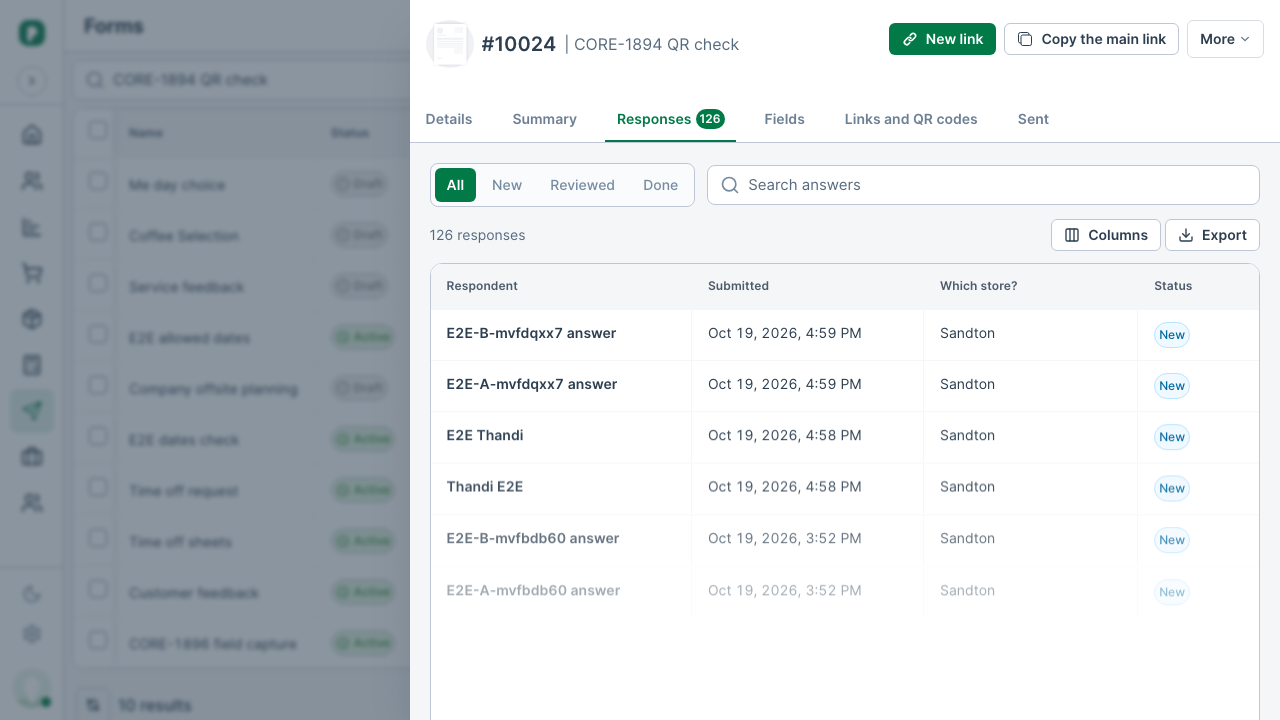
To see every response to one form, from every job and QR code, open the form and go to its Responses tab. Respondent and Submitted come first, then each question, then the Status. The status tabs (All, New, Reviewed, Done) and the search box narrow the list, and the page's address keeps them, so you can share a link that opens already filtered. A question someone left empty shows –. Columns hides questions you don't need to see (kept on this browser), and Export downloads the responses as a spreadsheet (CSV) with the columns you're showing.
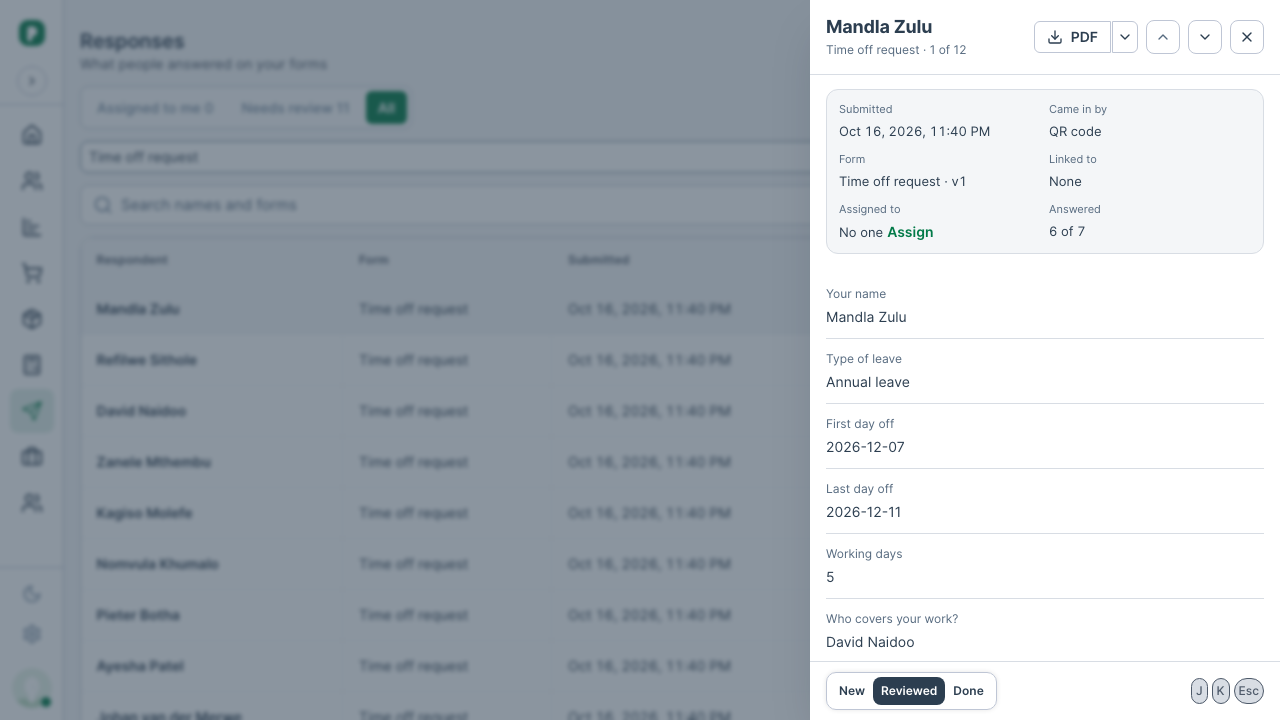
Click a row to read the response in a panel beside the list. When the form itself is open in a panel, the response takes the list's place instead. You see who answered, when, how it came in, which record it's on, who it's assigned to, and the answers. PDF at the top gives you the response ready to print or send; the arrow beside it offers Markdown (plain text, for notes or an AI tool) and Intake JSON (for systems and imports). Each has the answers in it. Mark it New, Reviewed or Done at the bottom. J and K step to the older and newer response, and Esc closes it (or takes you back to the list).
Photos, signatures and files open from inside PiCortex, for people who can see the form's responses. The link behind each one works for an hour, so a link copied out of PiCortex stops working after that. If a file won't open after the response has been open a while, open the response again. The PDF still shows the photos and signatures. Markdown and the Export spreadsheet give photos and files by name and a signature as Signed; Intake JSON gives each by its file name.
They stay with the response: a lead's or a beneficiary's Files tab doesn't list files uploaded to a form, and no other list of files does either.
Handle a response
Every response starts as New. Mark it Reviewed once someone has looked at it, and Done when nothing more needs doing. To hand it to someone, choose Assign beside Assigned to and pick them: they get a notification, and it shows in their Assigned to me. You can also take it yourself. The list offers the colleagues who can open responses and have a team member record. Anyone who can read the form can set the status and assign it; the person it's assigned to can set the status too, even on a private form. Once a response is Reviewed or Done, the respondent's link can't change it.
A simple form doesn't need the Reviewed step. On the form's Details tab, under Reviewing responses, switch off Responses need a review step: its responses then go from New straight to Done, and Needs review leaves the form out. Responses already marked Reviewed keep it. Only an administrator can change this.
Your inbox: Engage → Responses
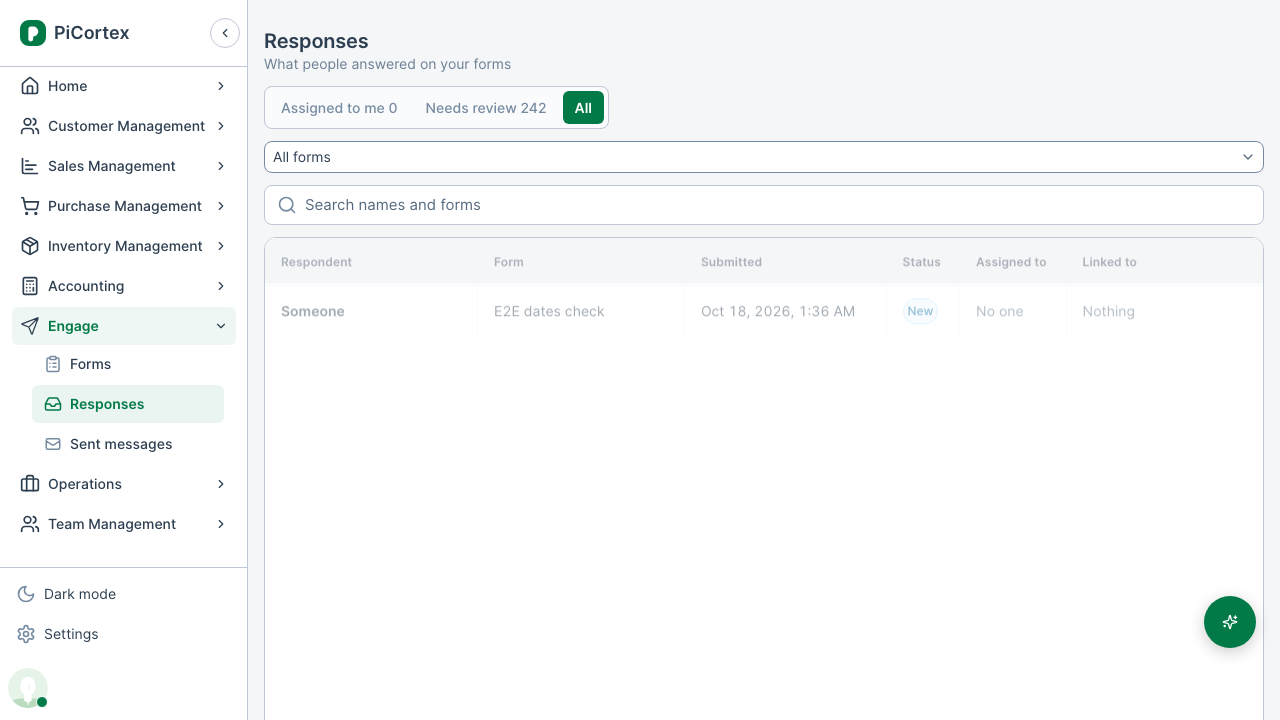
Engage → Responses is your inbox for every form you can read. It opens on Assigned to me (what's yours and not done), with Needs review (everything still New, on forms with a review step) and All. Use the Form filter to show one form, and search by who answered or the form's name (a search reads the newest 5,000 responses). Click a row to read and handle it the same way.
Hear about responses
On the form's Details tab, under When someone responds, choose how your team hears about responses: Don't notify, Every response, or a Daily summary at 5pm on days with responses. Below the choice are the people who are told: add someone with Add person, or choose the × on a name to stop telling them. Whoever made or sent the link a response came through hears about it too. On a form set to Admins + people, the people listed can also read its responses. On a private form, only people who can read its responses are emailed. Only an administrator can change these.