Send a form to your team
To ask your own staff, open the form and choose More, then Send to your team (it's on Details too). You can also do this straight after you publish a form.
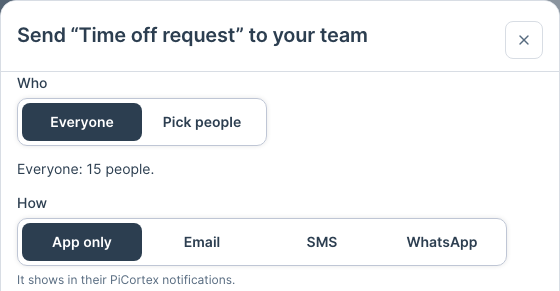
- Choose Everyone, or Pick people and tick who should get it. Next to each name it says how they can be reached: the app, email or mobile.
- Choose how: App only, Email, SMS or WhatsApp. With email, SMS or WhatsApp, everyone with a PiCortex login also sees it in the app.
- Choose Send to (it says how many people it will reach, for example Send to 12 people).
Each colleague gets their own link, so their answer is filed under their name. It shows in their PiCortex notifications, and opening it there opens their form. You can send to 50 people at a time.
Anyone who can't be reached the way you chose is listed before you send, grouped by why, for example No PiCortex login linked (3): followed by their names. If you can open team members, each name opens their record, where it's fixed. For the app, the reason is either no active PiCortex login linked to their team member, or two logins sharing their email, so neither is sure to be them. For email, SMS or WhatsApp, it's the address or number their team member is missing. Anyone the form didn't reach is named afterwards, with the reason.
Only people who build forms can send one to the team, and a colleague's link can't be copied: it's theirs.
To see who has answered, open the form's Sent tab: see See who hasn't answered.