Share a form by link or QR code
Anyone with a form's link or QR code can fill it in, and their answers are filed on your business, or on the job the code is for. Nobody needs a PiCortex login to answer.
Share a form's link
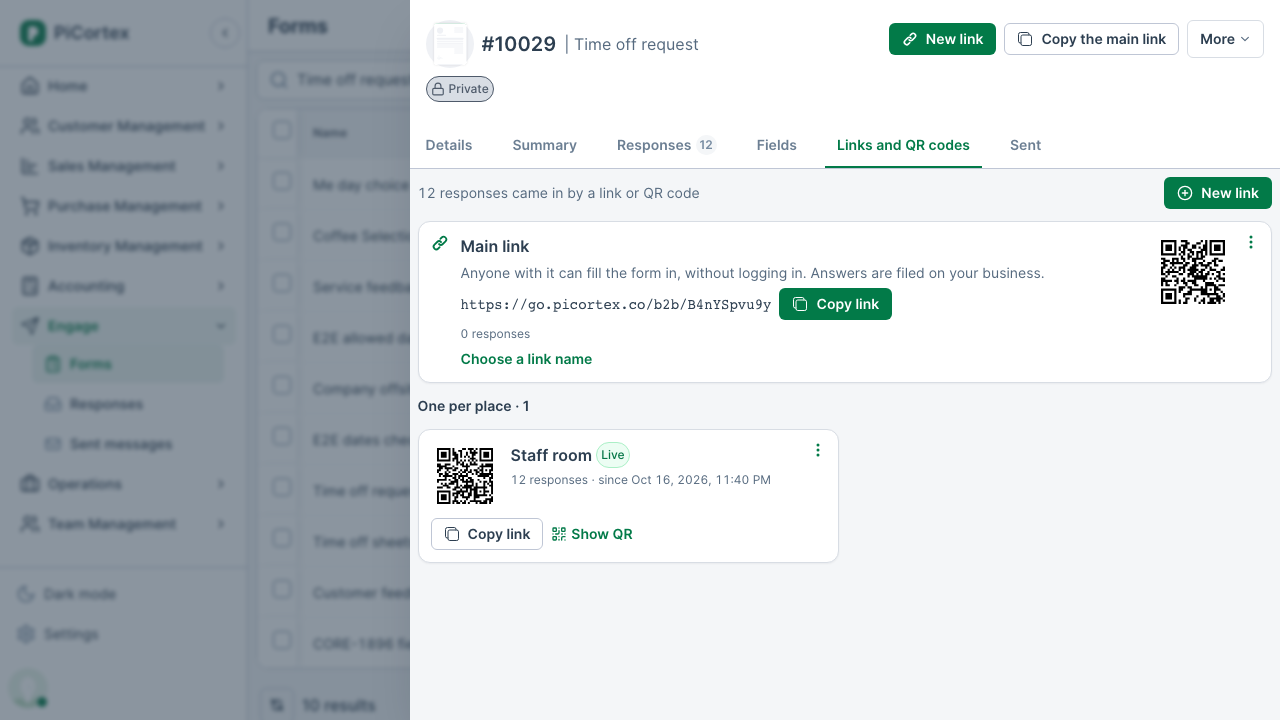
A published form can have a main link: anyone with it can fill the form in, and their answers are filed on your business. To copy it, open the form under Engage → Forms and choose Copy the main link at the top of the form; it's made the first time you do. You'll also find it on the form's Links and QR codes tab, with Copy link. Paste it into a message, an email or your website.
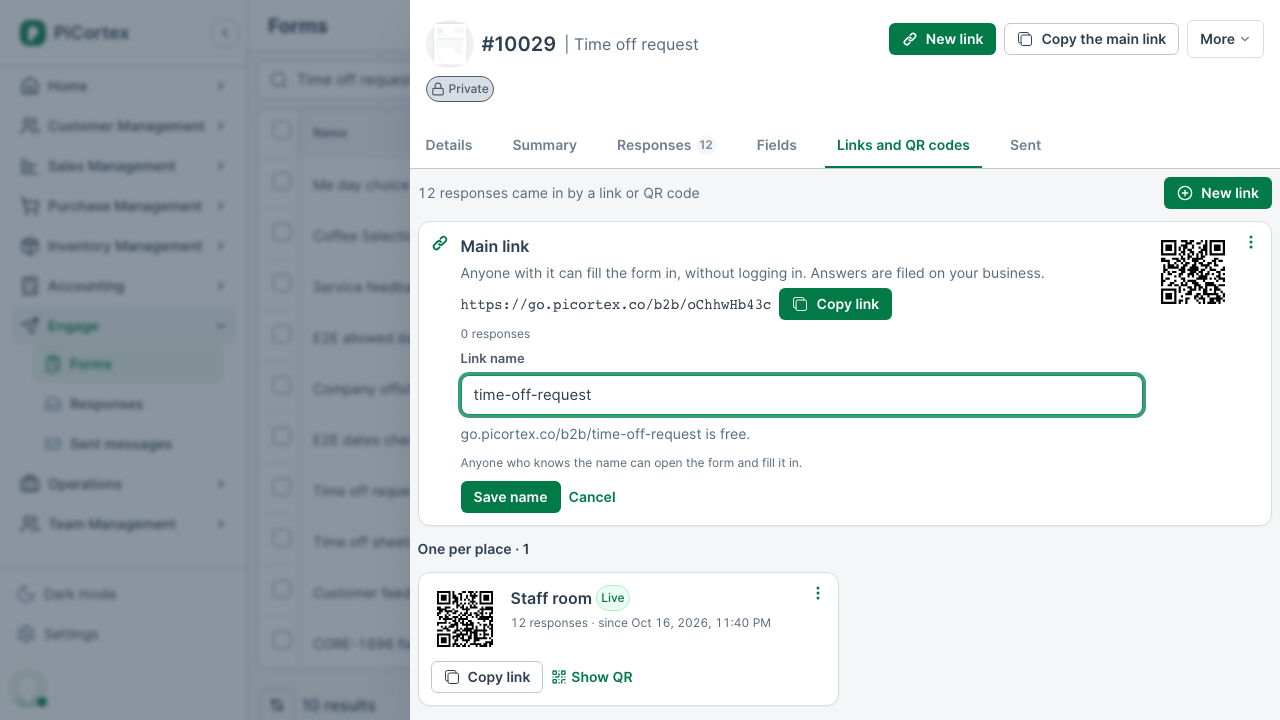
Choose a link name
A link name gives the main link an address people can type or read out, such as go.picortex.com/yourbusiness/time-off-request. On the form's Links and QR codes tab, under the main link, choose Choose a link name. PiCortex suggests one from the form's name; change it if you like, using 3 to 48 lowercase letters, numbers and hyphens. The full link shows under the box, with whether the name is free. Choose Save name. If the form had no main link yet, saving the name makes it. Only an administrator can choose or change a link name, and no two of your forms can have the same one.
Anyone who knows the name can open the form, so choose one only for a form you're happy to share publicly. To change or remove it, choose Change link name, then type a new name or choose Remove name. The old address stops working, so update anything you've printed. The main link keeps working either way. Resetting the main link doesn't remove its name: the name opens the new link, so remove the name too if it should stop working.
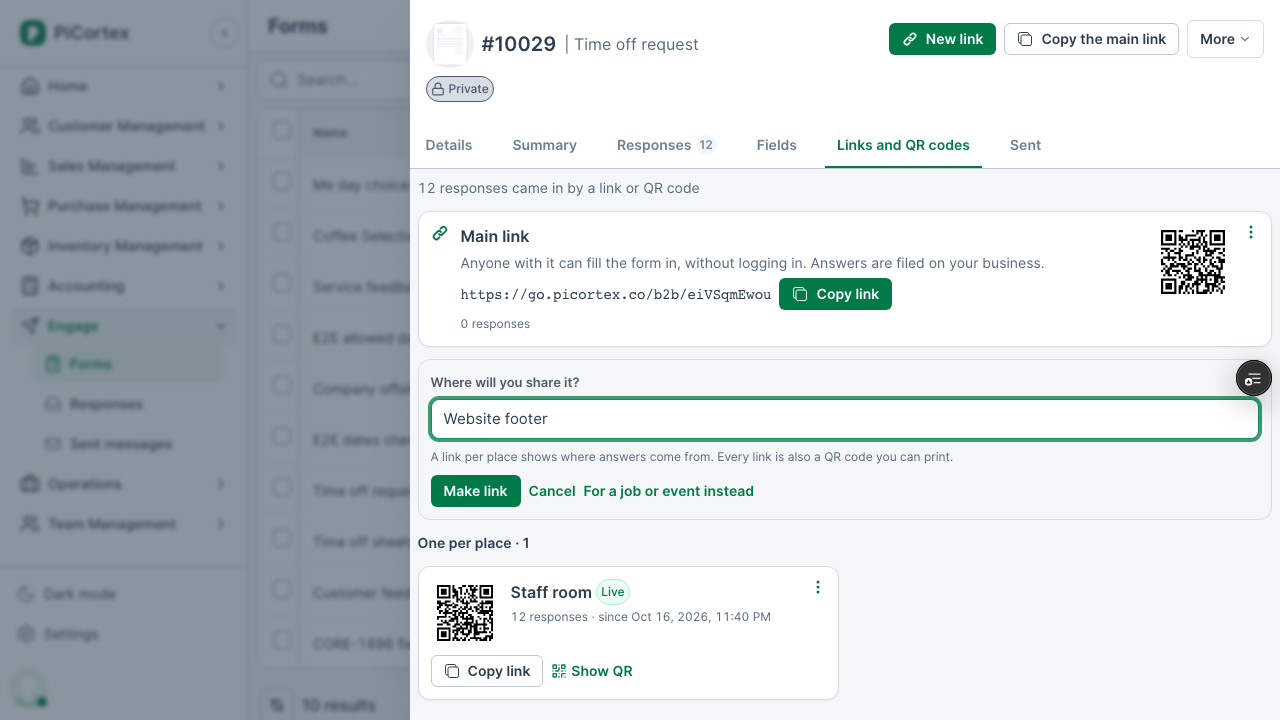
To see where answers come from, make a link for each place you share the form. Choose New link, say where you'll share it (for example "Website footer" or "Front counter") and choose Make link. Each link counts its own responses. To send one person a link of their own, use Send a form on their record instead.
Print a QR for your counter or shop window
Every link is also a QR code. On the Links and QR codes tab, choose Show QR on a link (or select its code) to see it large, then Download QR to print it. Two counters can have two links: give each its own name.
On a link filed on your business, the person answering can leave their name. They can also switch on Can your business contact you about this? (it shows your business name) and leave an email address or phone number. Their details are kept only if they switch that on, and you may use them only to reply to what they said, not for marketing.
Rename, switch off or delete a link
The … menu on a link has:
- Rename: change where it says it's shared. Two live links can't share a name.
- Switch off: the link stops taking responses, and the responses it already collected stay. It can't be switched back on; a new link is one click.
- Delete: only for a link nobody has used. A link with responses can't be deleted, because each response records which link it came in by: switch it off instead.
The main link can't be renamed or deleted. If it has gone somewhere it shouldn't, an administrator can choose Reset link from its … menu: the old link and its QR code stop working, and a new link replaces it. The responses so far stay.
Collect responses on a job with a QR code
At an activation, a site visit or any job where many people need to give you the same information, you don't want to send each of them a link. Print one QR code instead. Anyone who scans it with their phone camera opens your form, fills it in and submits. Each person's answers arrive as their own response, filed on the job.
Before you start
You need a published form. Build one under Engage → Forms and publish it. The questions on the form are what everyone who scans the code will answer.
Print the QR for a job
- Open the job. (For an event, open the job that stands for the event.)
- Click Perform actions and choose Collect responses (QR).
- Pick the form people should fill in.
- Click Generate QR.
- Click Download QR to save it as an image, ready to print or add to a poster. Copy link gives you the same form as a link, if you would rather share it in a message.
The code works until you switch it off. If you choose Collect responses (QR) again for the same form, you get the same code, so a sheet you already printed keeps working.
What the person scanning sees
They see your business name and the form. They answer the questions and tap Submit.
- Nothing is saved until they submit, and their answers are not kept on the phone or tablet. If several people share one tablet at your stand, the next person always starts with an empty form.
- After submitting, they can tap Submit another response to hand the device to the next person.
- A form shared this way is filled in one go. There is no "save and continue later".
The responses are on the job's Form responses tab: see Work through responses.
Good to know
- Choice questions only accept the listed choices. If a question offers options, the response must pick one of them.
- Email notifications arrive per response. If your form is set to email someone when a response comes in, a busy QR sends one email for every person who submits.
- Anyone who can see the job can print its QR.