Build a form
Go to Engage → Forms and choose Build a form, or open a form and choose Edit questions.
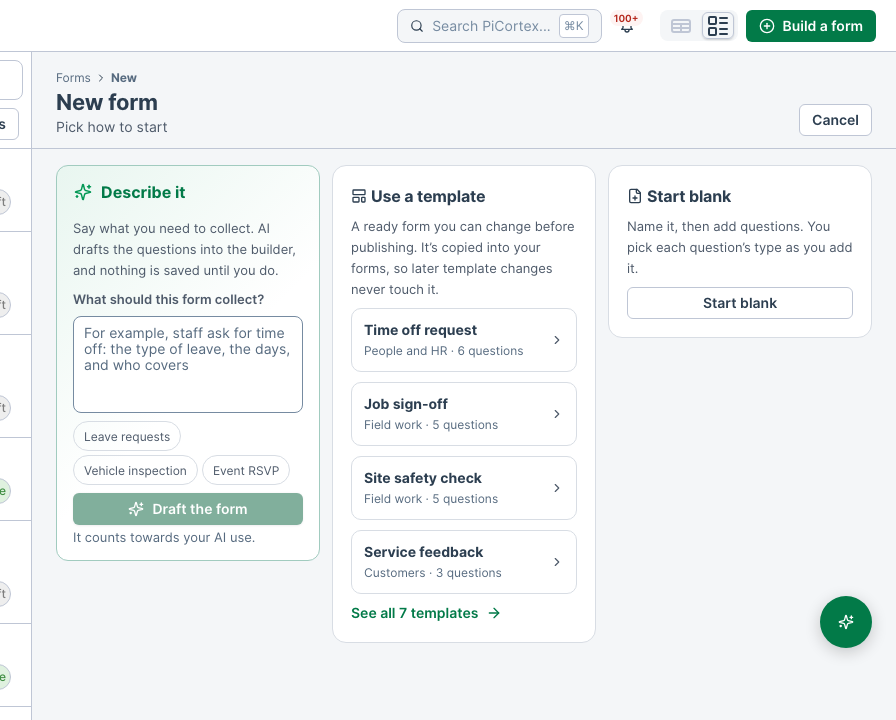
A new form starts with three choices:
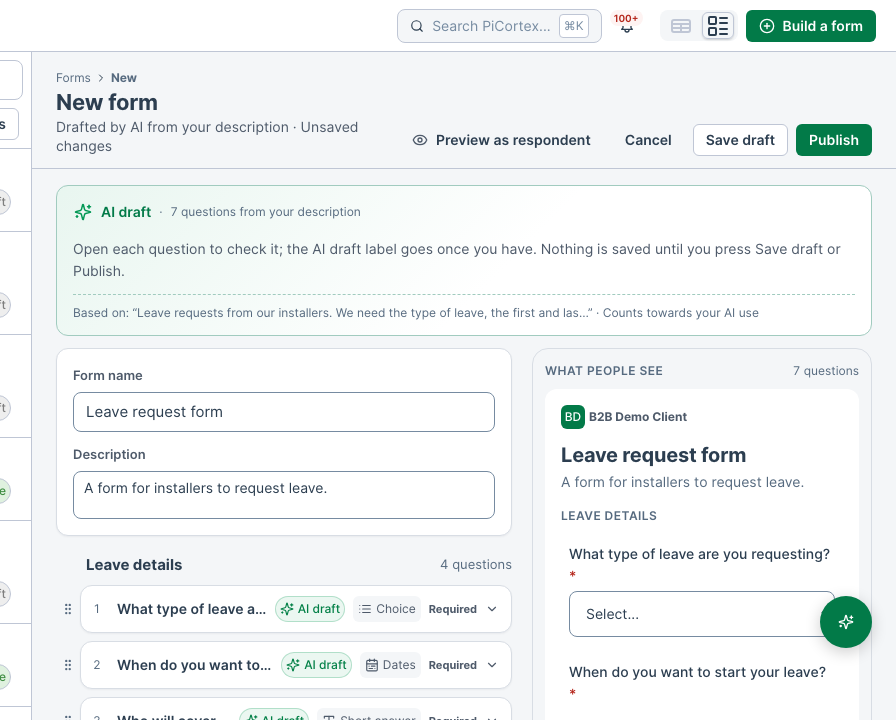
- Describe it. Say what the form should collect, or pick one of the examples, and choose Draft the form: the AI drafts the name and the questions. Every question it wrote is marked AI draft until you open it. Check them and change what you like.
- Use a template. A ready form, such as a time off request, a job sign-off or a site safety check, copied into the builder for you to change.
- Start blank. Name the form and add questions yourself.
Nothing is saved until you choose Save draft or Publish.
The questions sit in their sections. Each section ends with Add a question and Add with AI:
- Add a question opens the kinds of question, each with its icon: short and long answers, choices and ratings, numbers and amounts, dates, photos, signatures and more. Pick one and type the question.
- Add with AI drafts more questions for that section. It reads the questions already in the section, so it doesn't ask them twice. The AI never asks for ID numbers, bank details or passwords: add those yourself, so you can mark them as personal.
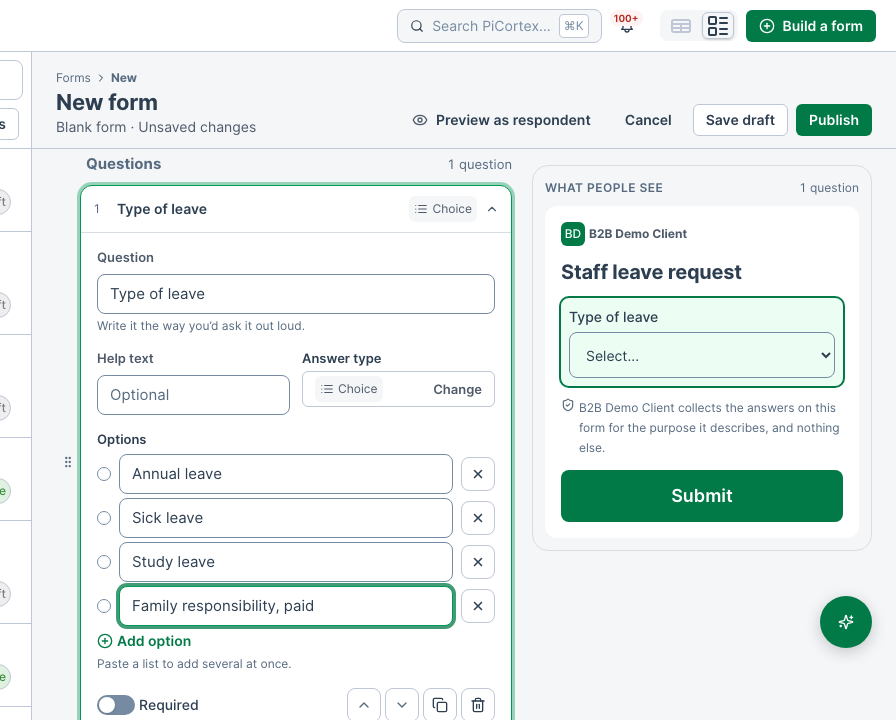
A question shows as one line until you open it. Open it to write the question the way you'd ask it out loud, add help text, change its answer type with Change, and switch Required on or off.
- A choice question has one box per option. Paste a list into any of them to add them all at once.
- Use the arrows to move a question up or down (past the top or bottom of a section, it moves into the next one), the copy button to duplicate it, and the bin to remove it. Undo brings back a question you removed.
- Type a heading over a section to name it. Add section adds another at the end; a section is kept once it has a question.
- On the right is the form as people will see it, with the question you're editing marked. On a phone, switch between Edit and Preview.
- Preview as respondent (on a phone, the eye beside Cancel) opens the real form in a new tab, unpublished changes included, so you can fill it in on your phone or computer as respondents will. It saves your changes as a draft first. While a form has unpublished changes, the preview shows them; respondents keep getting the live version until you publish. Nothing you enter there is sent or kept: Check my answers runs the checks a respondent meets and sends nothing, photos and files aren't uploaded, and the form is filled in one go, as on a QR code. The preview link works for a day. You'll also find Preview as respondent on a form's Fields tab and in its More menu, for the people who build forms.
If a form asks for a first day, a last day and the number of working days as separate questions, the builder offers to combine them into one Dates question. Answers already given stay as they were, on the earlier version.
Save draft keeps your work private, even if some questions aren't finished: anything still to fix is marked on the question and listed at the top, each a link to it. Publish makes the form live once there's nothing to fix. When the form is already live, the header says what publishing does ("Editing the live v3 · Publishing makes v4"), and answers already given stay on the version they were given on. The first time it's published, send it to your team, show its QR code or copy its link from the same place. Cancel asks before throwing away unsaved changes.
Kinds of question
A form can ask for more than typed answers. When you add a question in the form builder, these types are useful on site and for feedback:
- Photos. The person takes up to 5 photos, or picks them from their phone.
- Location. The person is asked before their location is read, and can choose Don't share. Choosing not to share still counts as an answer, so nobody is stopped from submitting. When you open the response, PiCortex shows the nearest street address, or only the suburb when the phone could not pin the location down.
- Signature. The person signs with a finger or a mouse, or types their name.
- Star rating. The person taps 1 to 5 stars.
- Likely to recommend. The person picks a number from 0 (not likely) to 10 (very likely), the question behind a Net Promoter Score.
- Time of submission. Nothing to fill in. PiCortex records the time the form was sent, in your business's time zone.
Photos and signatures show as pictures when you open a response, and they are included when you download it as a PDF. A File upload answer shows as a link with the file's name. Only people who can see the form's responses can open them.
For dates, including counting working days and which days can be picked, see Ask for dates and count working days.
A form's Details and Fields
Details says what the form is: its name and description, how many questions it asks, who hears about responses (by name), its versions (each with when it was live and how many answered it), where it's shared (its links and QR codes, and the people it was sent to), who can see its responses, whether they need a review step, and which question tells you who answered.
Fields lists the questions as people see them: each one's type, help text and options, which question tells you who answered, and how many people answered it. Select a question to open it in the builder.