Sales Order
The Sales Order feature on the PiCortex platform allows you to create and manage sales orders for your customers. Here's how to use the Sales Order feature to manage your sales process efficiently:
1. Create Sales Order
To create a sales order, you can navigate to the "Sales Orders" section of the platform and click on the "Create Sales Order" button. You can then enter the details of the sales order, such as the customer name, products or services sold, and the quantity sold.
The Store shows which branch the order belongs to. A new order is filed under your home store if you have one (set under Branch on your team member profile), and an order made from a quotation keeps the quotation's store. The store decides the order's number prefix and whether out-of-stock items can be sold on it.
Create a follow-up job
When a customer comes back for a repair, service or upgrade, open the sales order, open the More menu and choose Create follow-up job. Pick a job template and a date, and optionally a team member and notes. The job is created with the template's tasks and appears in the order's Jobs tab and in the customer's history.
If your business has fields of its own on jobs, such as a solution ID or a service plan, the job form on the order's Jobs tab shows them in an Other details card, the same as on a customer's job.
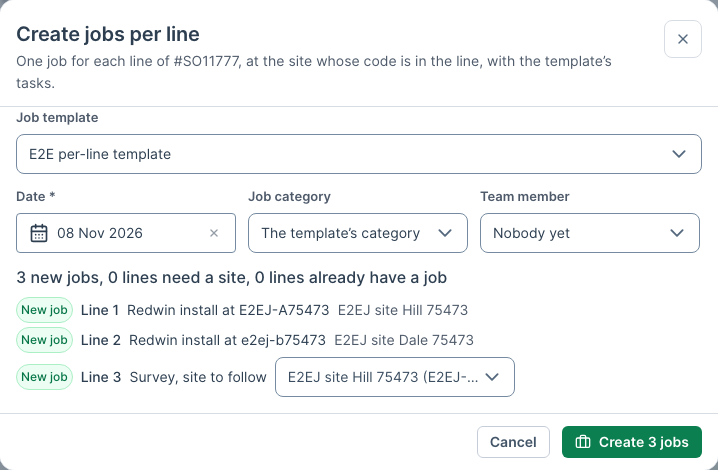
Create jobs per line
When one order covers work at many sites, such as a batch of installations, open the order, open the More menu and choose Create jobs per line. You get one job for each product or service line, at that line's site.
- Pick a Date. Optionally choose a Job category (each job takes its template's otherwise) and a Team member to lead every job.
- Check the preview. Each line says New job, Needs a site, Needs a template or Has a job, and shows the job template it will use. Each job gets its template's tasks.
- Change any line's template if it's wrong, and pick a Template for other lines for lines no template matches.
- Choose Create.
Each service line gets the job template with the same name as its service, so a "Survey Only" line gets your "Survey Only" template's tasks and an "Install" line gets the install tasks. The names must match; capital letters, spaces, dashes and punctuation don't matter, so "Break Fix Call Out" finds a "Break Fix — Call Out" template. A line whose service has no template of the same name, or a line with no service, gets the Template for other lines.
A line finds its site by the site's site code in the line's description, such as "Install at VC1234". When a line has no site code, or the codes of two sites, it needs a site: pick one from the customer's sites in the preview, or leave the line out. Site codes are on each site (see Sites).
The jobs appear in the order's Jobs tab. Running it again is safe: a line that already has a job is skipped, so nothing is made twice. The jobs carry the template's tasks but not the order's lines, so the order is still what you invoice.
2. Send Sales Order
Once you have created the sales order, you can send it to the customer by clicking on the "Send" button. The customer will receive an email with the sales order details and a request to confirm the order.
3. Track Sales Order
After you have sent the sales order, you can track its status by checking the sales order history in the "Sales Orders" section of the platform. You can see when the order was sent, when it was confirmed, and when it was fulfilled.
Tips for Using Sales Order
Here are some tips for using the Sales Order feature effectively:
- Use the Sales Order feature to manage your sales process efficiently.
- Review the sales order carefully before sending to ensure that all details are accurate and complete.
- Customize the sales order to match the specific needs of your organization.
Conclusion
The Sales Order feature on the PiCortex platform allows you to create and manage sales orders for your customers. By creating the sales order, sending it, and tracking its status, you can efficiently manage your sales process. Use the tips provided to make the most of this feature and streamline your sales management process.