Connect the SharePoint site whose documents hold your events. The assistant can then list and read the files there when someone asks, and save files there if an Administrator allows it. It sees nothing outside that site.
Ask it to make an event from a folder, in the PiCortex chat. It reads the brief, tells you what it will fill in and how many files the folder holds, and waits for your yes. Then it makes the event and attaches every file in the folder, subfolders included. For an event already made from a folder, ask it to bring the event up to date from its folder: it fills only what's empty and adds the files that aren't on the event yet.
Connect
Only Administrators can connect SharePoint.
- Go to Settings › Integrations and find Microsoft SharePoint.
- Click Connect, then Sign in with Microsoft. Use a Microsoft 365 account that can open the site you want.
- Back in PiCortex, choose the site whose documents hold your events, for example Event Team. Search for it by name if you don't see it.
- Click Use this site.
The card then says Connected, with the site's name under it.
Manage the connection
Click Manage on the card:
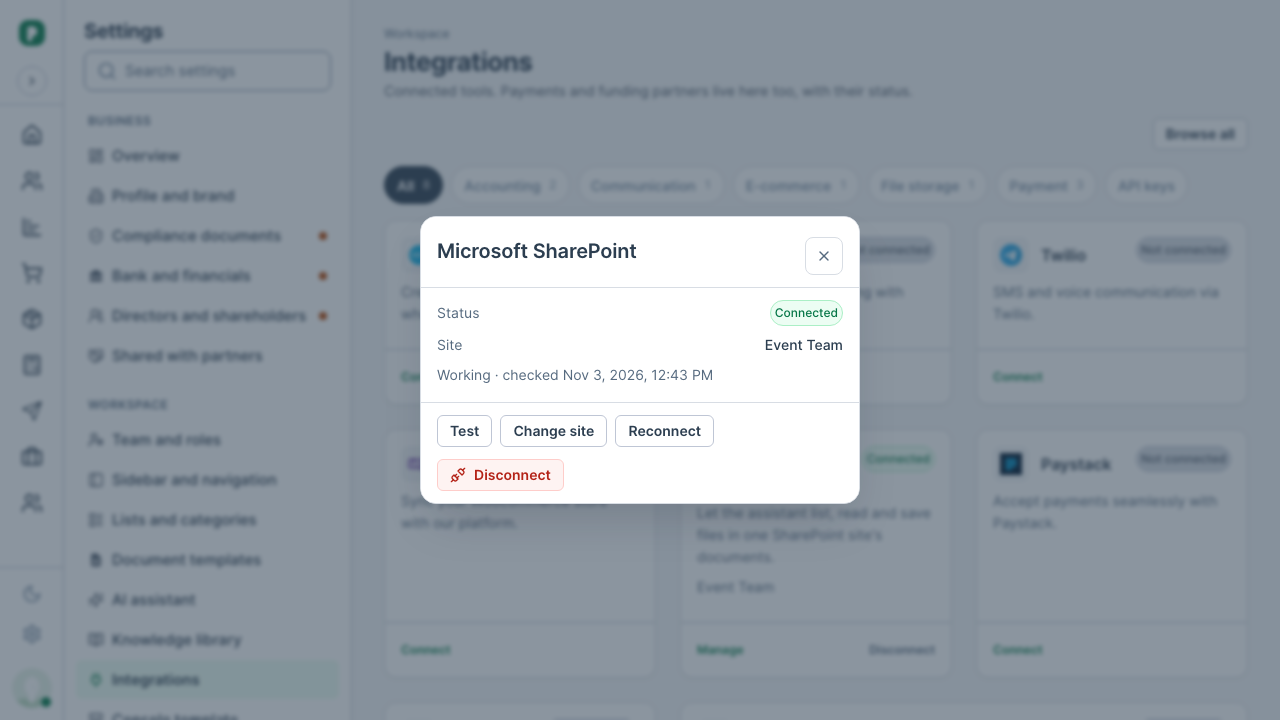
- Test checks PiCortex can still open the site.
- Change site picks a different site.
- Reconnect signs in to Microsoft again, for example after a password change.
- Disconnect stops the assistant reading and saving files in SharePoint. Nothing in SharePoint is deleted.
Link an event to its folder
On an event, paste the folder's address into SharePoint link. The event's details then show Open folder.
If the folder is deleted or moved in SharePoint later, the event says This folder isn't in SharePoint any more instead of opening a page that isn't there. Click Pick another folder to open the event and paste the new address.