Your promoter pool: registering, approving and tiers
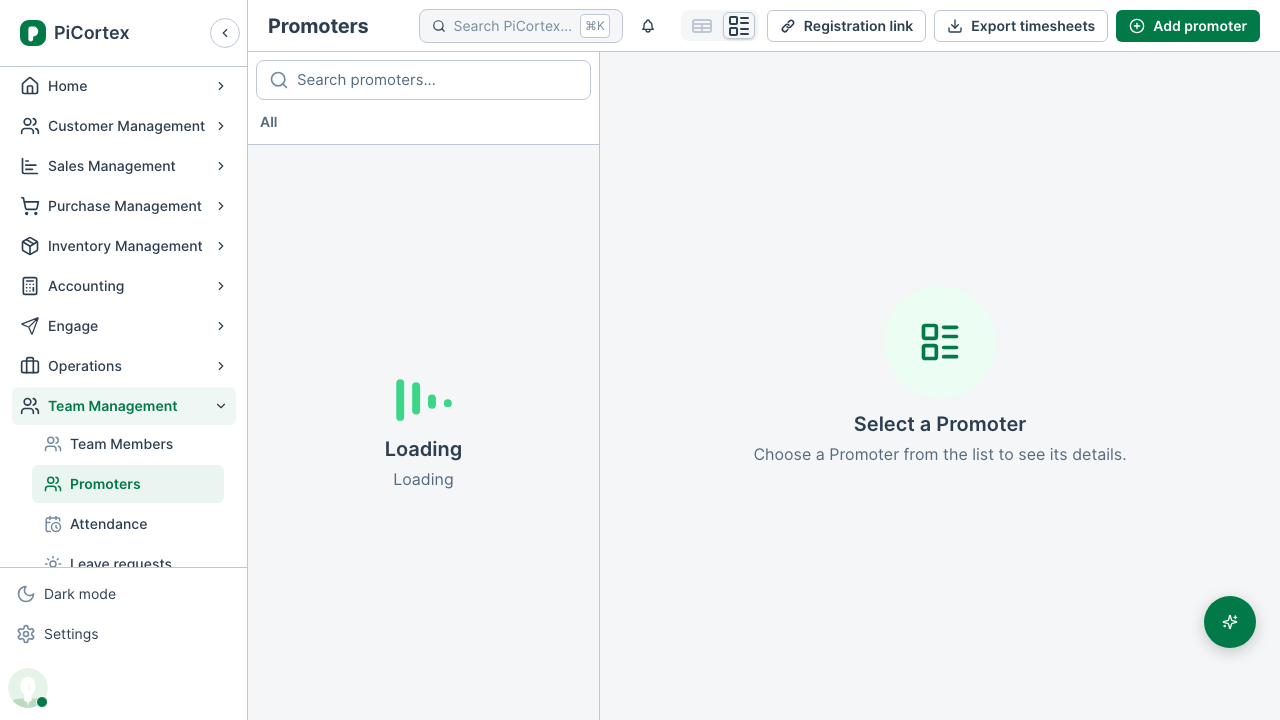
If your business runs events, Promoters (under Team Management) is the pool of people you roster on them. Promoters are not team members: they don't sign in to PiCortex. They join from a link, and check in at each event by scanning its venue QR.
Share the registration link
On Promoters, click Registration link. You can copy the link, or download its QR code to put on a poster. One link works for everyone.
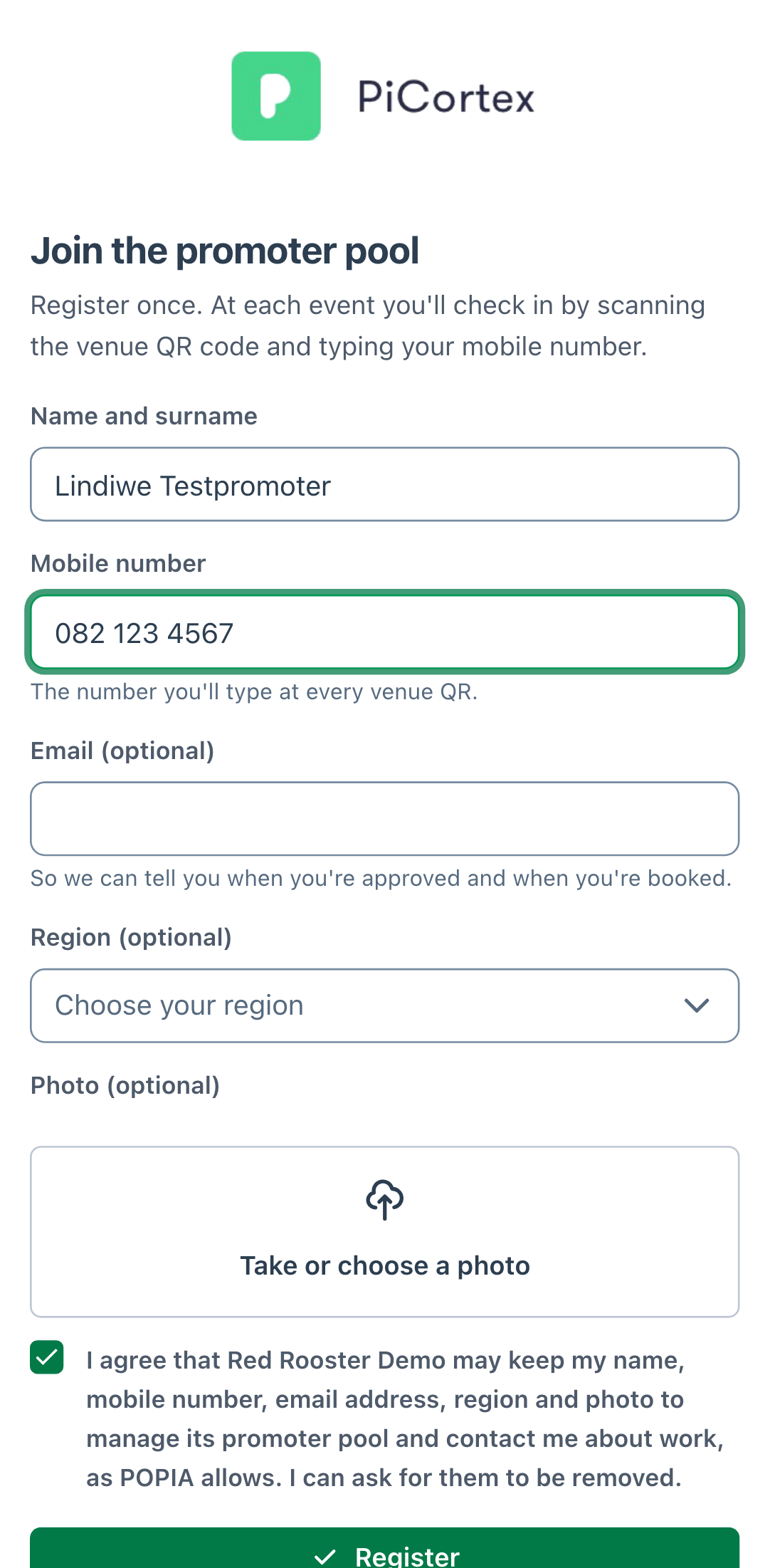
Someone who opens it gives their name and mobile number, and can add an email address, their region and a photo. They have to agree to you keeping their details before they can register. Their mobile number is what they type at every venue, so each number can only be registered once.
If the link has been shared too widely, click Replace. The old link and its QR stop working straight away. People who have already registered are not affected.
Approve new promoters
A new registration arrives as Pending. Open it and click Approve. They become Active, and if they gave an email address they are told they can now check in at events.
Only active promoters can be rostered or check in. Click Deactivate for someone you no longer use; they can't check in until you click Reactivate.
You can also add a promoter yourself with Add promoter.
Tiers
Tiers group your promoters by how they work, and set what a new shift pays. Create them in Settings › Lists › Promoter Tiers. For each tier, set:
- its rank: the higher the rank, the better the tier;
- what it asks for, over the last 90 days: a minimum number of shifts worked, a minimum share checked in on time, and a maximum number of no-shows;
- its hourly rate, which new shifts for promoters in the tier start from.
Every night PiCortex works out each promoter's tier: the highest one whose rules they meet. To keep someone in a tier whatever their numbers, set a Tier override on their record. The promoter's page shows their shifts, on-time share and no-shows for the last 90 days.
Timesheets
Each month's timesheet lists a promoter's shifts with the times they actually checked in and out, the hours, the rate and what they earned. It has blank spaces for their ID and bank details, for them to fill in by hand.
- One promoter: open them and go to Timesheets, pick the month, then click Download timesheet.
- Everyone: on Promoters, click Export timesheets and pick the month. Download each promoter's PDF, or all of them.
Only Administrators, HR, ESD and Finance can download timesheets, because they show pay. If a promoter forgot to check out, the sheet uses their rostered end time and marks the row.