Promoters checking in at an event
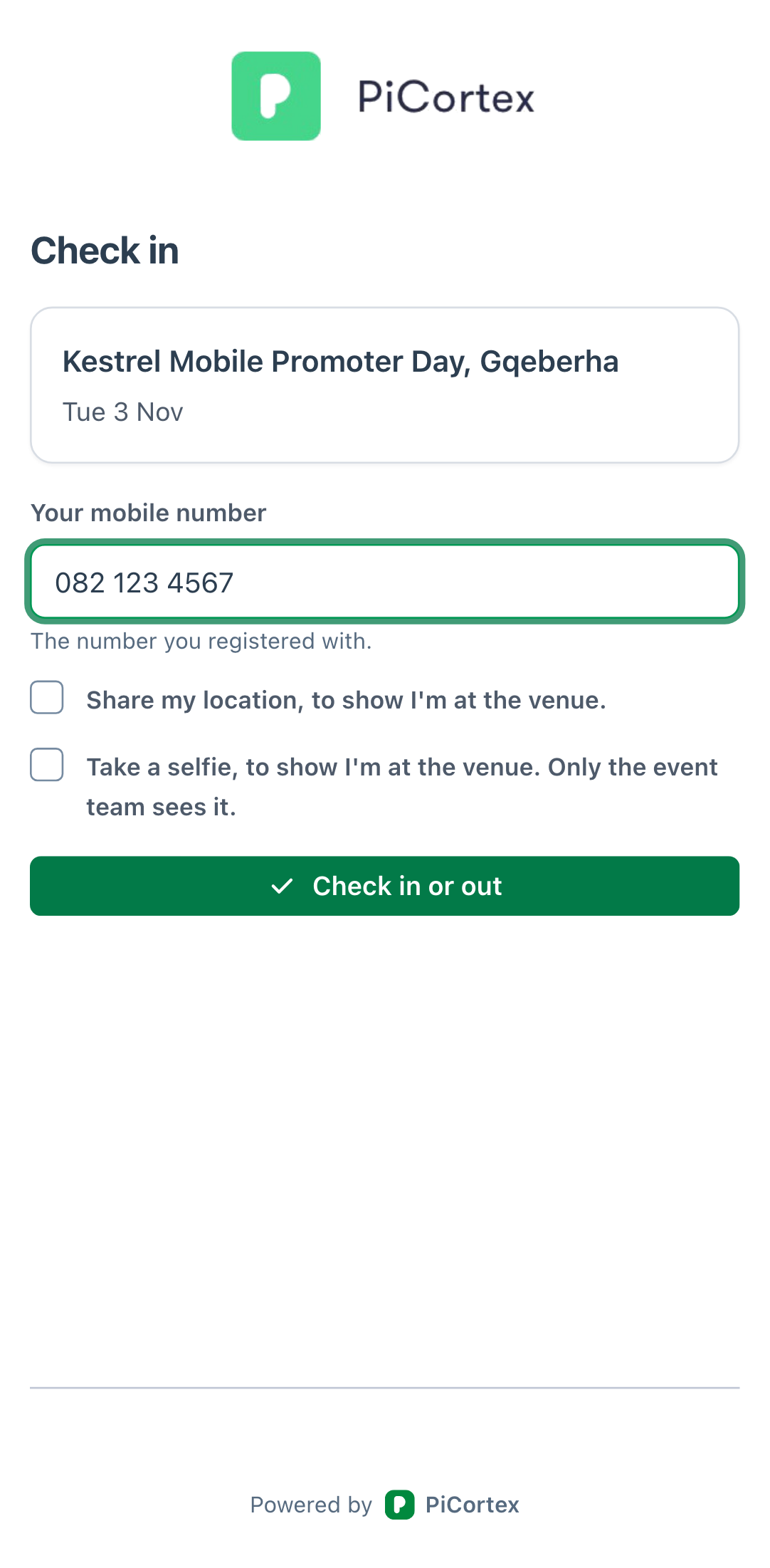
Every event has its own venue QR. Put it up where your promoters arrive. They scan it with their phone camera and type their mobile number to check in, and scan it again when they leave to check out. They don't need an app or a password.
Print the venue QR
Open the event and go to its Promoters tab. Click Venue QR, then Download QR to print it, or copy the link to send it.
If a printed QR ends up somewhere it shouldn't, click Replace. The old QR stops working straight away; check-ins already made are kept.
What promoters see
The page shows the event's name, venue and time. The promoter types the number they registered with. They can also tick:
- Share my location, so you can see they were at the venue;
- Take a selfie, so you can see who checked in.
Both are optional, and each needs its own tick. The selfie is only ever seen by your team; it is never on a public page. Without them a check-in still counts, but you have no proof of presence beyond the number typed.
When check-in is open
The QR accepts check-ins from 2 hours before the event starts until 2 hours after it ends. A promoter's own shift opens it in the same way, so a shift outside the event's times still works. A check-in up to 15 minutes after the start counts as on time. These are the usual times; if your business needs different ones, ask PiCortex support to change them for you.
When a check-in is turned away
The page always says why:
- We don't recognise this number: nobody registered with it. If your pool has a registration link, the page offers it.
- Waiting for approval: they registered but haven't been approved yet.
- Not active: they were deactivated.
- Hasn't opened yet or has closed: it's outside the check-in times.
Any active promoter can check in, even if they aren't rostered. Their check-in is listed separately on the event's Promoters tab, so you can see who came without a shift.
A rostered promoter who hasn't checked in by the end of the grace period after their shift starts (15 minutes, unless your business has a different one) is a no-show. If your business has an escalation rule for no-shows, the event's manager hears about it, then your escalation contact, until they check in. See Escalations.