Escalations: who hears about what, and when
Escalations make sure the right person hears about a problem before you have to ask. The person responsible hears first. If the problem is still there after a while, your escalation contact hears too. Messages stop as soon as the problem is sorted: nobody has to reply to them.
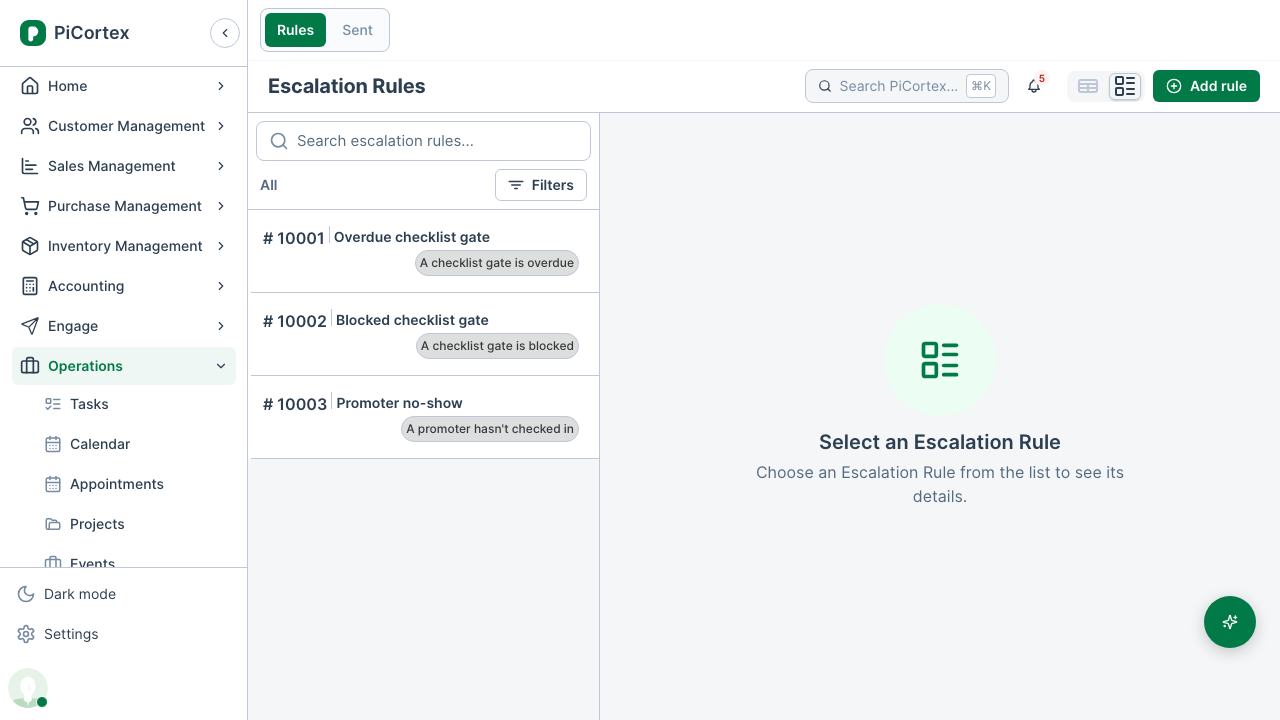
What can escalate
Each rule watches one kind of problem:
- A checklist gate is overdue: a mandatory item or pre-live gate is past its due date and isn't done or N/A. Gates without a due date can't be overdue.
- A checklist gate is blocked: a mandatory item or pre-live gate is set to Blocked.
- A promoter hasn't checked in: a rostered promoter hasn't checked in 15 minutes after their shift started (your check-in grace). It stops when the shift ends.
Gates only escalate on events that are still to come or happening today, and not on cancelled or completed ones.
- An approval is waiting: a quote or leave request sent for approval hasn't been answered after a number of hours.
Who hears, and when
- First, the person responsible: the task's assignee (or the event manager if nobody is assigned), the event manager for a no-show, or each approver for an approval. Approvers get their own approval link again.
- Then, your escalation contacts: up to three people you choose on the rule, after the delay you set. For a quote, its salesperson hears at the same time.
If nobody is responsible, for example a gate with no assignee on an event with no manager, the escalation contacts hear first.
Messages arrive by email, and in PiCortex and the app's notifications for people who sign in. Once WhatsApp is switched on for your business, people with a verified WhatsApp number get them there instead of by email. A rule lists any contact without a verified number.
Hours and limits
- Each rule sends between the hours you set, every day unless you leave weekends out. Anything due outside them waits for the morning.
- Any hour sends straight away, whatever the time. Use it for problems that can't wait, such as a blocked gate.
- Nobody gets more than a set number of escalations a day (10 unless you change it). Past that, they get one message saying how many more need them, and the rest go the next day if they are still a problem.
Setting up a rule
Go to Operations › Escalations, stay on Rules and click Add rule. Only Administrators can add or change rules; HR can see them.
- Give it a name, and choose what it watches in When.
- Set Owner hears after and Escalation contacts hear after, in minutes from when the problem starts. Leave the second blank if contacts should never hear.
- Choose up to three Escalation contacts.
- Set the hours, and whether it may send at any hour.
- For approvals, set how many hours one can wait, and whether the rule covers quotes, leave or both.
To stop a rule, switch On off. The Sent tab lists every message the rules have sent: about what, to whom, and when the problem cleared. Each rule's own Escalations tab shows its messages. Only Administrators can see what was sent, and nobody can change or delete it.