Activation reports: your client’s deck, filled from the event
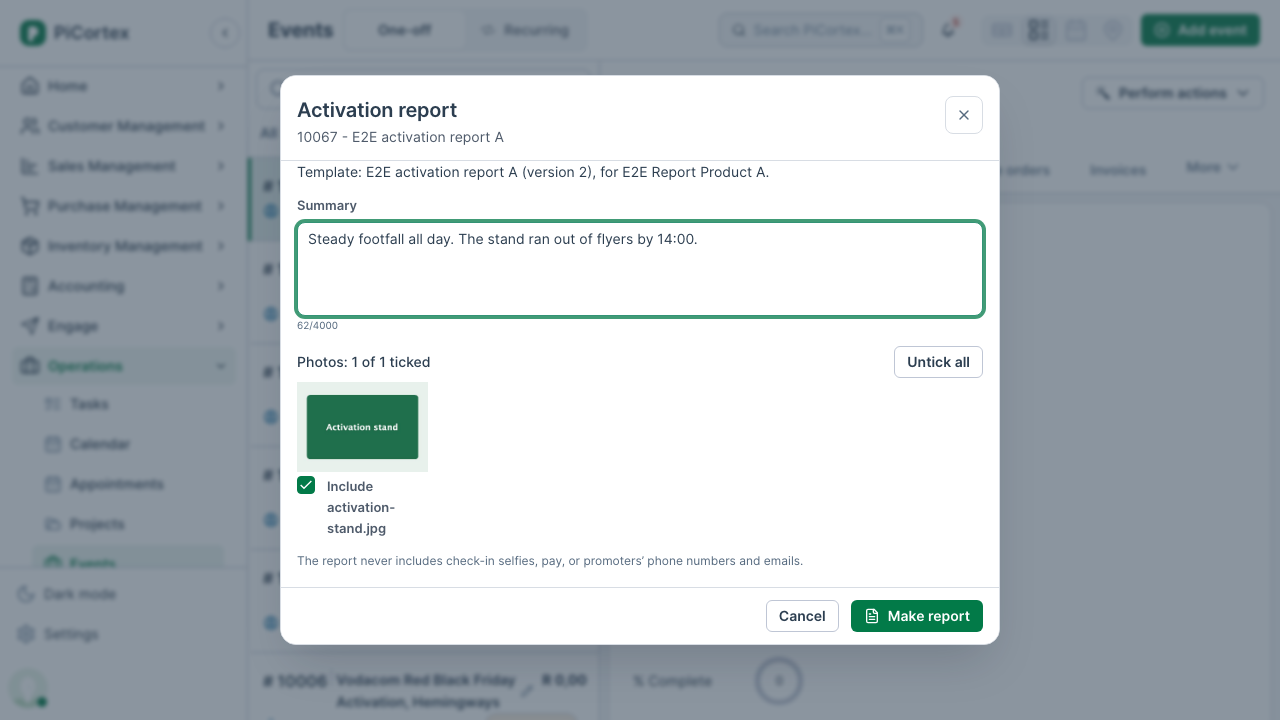
After an activation, your client wants a report in their own template. PiCortex makes it from the event: open the event, click Perform actions, then Activation report.
Before the first report
Every event's report uses your business's default template: the activation report template for Any product, in Settings → Document templates. One default covers all your events, whatever the client or product.
When a client wants its own deck, an administrator uploads it as an Activation report and chooses that client's Client product. Events for that product then use its deck instead of the default. See Document templates.
If we set up a default for your business, you'll find it there already: a cover with the event's name, a client brief, and a thank-you slide. Otherwise, upload your own. Replace a default at any time with New version beside it.
What's in the report
Your client's slides stay as they are, with the event's details filled in where the deck asks for them. Before the deck's last slide, the report adds:
- Overview: the event, client, product, region, business unit, venue, date, expected attendees and the brief.
- Team & attendance: how many promoters were rostered, on time, late and no-shows, the hours worked, and each promoter's name, role, shift and attendance.
- Engagement: the sign-ups from forms answered at the event, per form.
- Spend vs budget: what the event has committed and spent, the same figures as the budget on the event's Details. Only if you can see the event's budget. See Spend vs budget below.
- Summary: what you type in the window.
- Photos: the photos in the event's Files, four to a slide.
A section with nothing in it is left out. The report never includes a promoter's pay or rate, phone number or email, or their check-in selfies. The spend slide's hours total is the one cost figure that comes from hours: see below.
Spend vs budget
The slide shows the same Committed, Spent and Remaining as the budget on the event's Details, so the deck and the event page always agree. See Spend against the budget.
- Committed: purchase orders not yet billed, by category, and draft bills.
- Spent: received purchase orders not yet billed, by category; approved bills, those raised from a purchase order and those that weren't; and the event's hours, items and expenses.
Purchase orders count at what they cost you, not at the items' selling prices, and cancelled orders don't count. Once a supplier bills an order, the bill counts instead of the order, so a row takes the billed part off the order's categories. Each section's rows add up to its total.
Purchase orders and bills are without VAT if your business is registered for VAT, and include the supplier's VAT if it isn't. The slide says which. Hours, items and expenses count as you entered them.
The slide also shows the budget, how much is used (committed plus spent) and what remains.
Who sees the figures: the same people who see them on the event's budget. If you can't see the event's budget, your report leaves the spend slide out, and the {{Spend}}, {{Committed}} and {{Remaining}} placeholders print blank. Ask someone who can see the budget to make the report if it should include spend.
The Hours row is the cost of all the hours logged on the event, as on the event's budget. On an event where one person logged hours, that is what they cost you. If your client shouldn't see it, delete the row in PowerPoint before you send the deck.
Making it
Anyone who can change the event can make its report.
- On the event, click Perform actions, then Activation report. The window says which template it will use: the one for the event's product, or the default for every event.
- Type a Summary: what happened, what worked, what to change next time. It is kept for the next report.
- Untick any photo you don't want in it. A report holds up to 48.
- Click Make report.
The report is a PowerPoint file (.pptx), saved under the event's Files. Each report is a new file: an earlier one is never replaced. Open it in PowerPoint to make last changes, or save it as a PDF from there.
If it says there's no template
Your business has no default template yet, and the event's client product has none of its own. Ask an administrator to add one for Any product in Settings → Document templates. That one template covers every event.