Your jobs on your phone
The PiCortex app opens Jobs on the work assigned to you, and the photos you take on a job or a task show when and where they were taken.
Mine and All
At the top of the Jobs list, Mine shows the jobs you lead and the jobs you're on the crew of, and All shows everyone's jobs, including the ones nobody has been assigned to yet. Tap either one to switch. If you see only your own work (a technician does, by default), All lists the jobs you lead, are on the crew of or have a task on, plus open jobs nobody has been given, and on each of them you see all the job's tasks.
The list opens on Mine if your login is linked to a team member. Jobs are assigned to team members, so if yours isn't linked the list opens on All, and Mine tells you to ask an admin to link your login. A login an admin creates with Give Access on a team member's page (on the web) is linked to that team member.
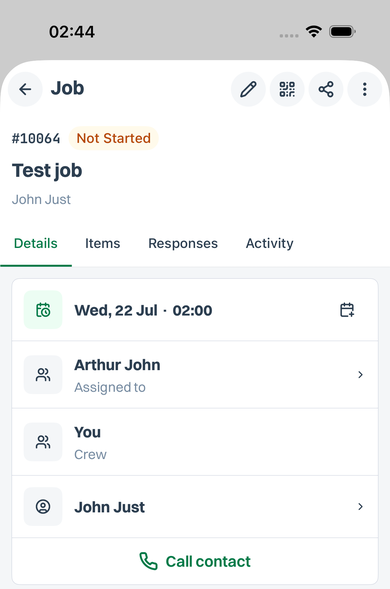
On a job, the Assigned to line shows who leads it, and reads "(You)" when that's you. If other people were added to the job with Add Team Member, a Crew line lists them, with "You" first when you're one of them.
When someone assigns a job to you, or adds you to a job's crew, your phone gets a notification; tap it to open the job. See Notification preferences.
The job's tasks, by stage
A job's Details lists its tasks under the work card, each with its status. A job made from a template with stages, such as survey, installation and ATP, lists them stage by stage, with how many of each stage's tasks are done, and says which stage the job is at now. A task marked N/A, or an extra still waiting for approval, doesn't count towards its stage.
Asking how far a job is
Ask the PiCortex assistant, for example "how far is job 10075?". It answers with the job's status, the stage it's at and anything overdue, and only for jobs you can see.
Photos that show when and where
Open a job or one of its tasks, go to Activity, tap the camera button at the bottom, and choose Take a photo. The photo is saved on that job or task with the time you took it.
The first time you take a photo, the app asks whether it may use your location. If you allow it, each photo you take also records where you were standing. You can change this later in your phone's settings for the PiCortex app. Photos work the same either way; they just have no location.
The time and place are recorded only for photos taken with the app's camera. A picture chosen with From gallery keeps no location, because the app can't know where it was taken.
Checking a photo
Tap any photo on a job or task to see where it came from:
- Taken with the PiCortex camera, with the time it was taken and the time it reached PiCortex. If the two times differ, the photo waited for signal before uploading.
- Where it was taken opens the spot in a maps app. The first time, choose Google Maps or Apple Maps; the app remembers your choice. Press and hold the link to choose again.
- Uploaded file means there's no camera record: the picture came from the gallery or a file, or it was taken before the app recorded this.
Your office can print the time and place under each photo on a generated job document, such as a site acceptance or a job report. See Document templates.
No signal?
Take the photo anyway. A photo or file you add to a job, a task, a quote, an order or a lead waits on your phone until there's a connection, then uploads by itself, even if you've closed the app in between. The record's Activity tab lists what's still waiting, and a strip along the bottom of the app shows how many files are waiting to upload.
If a file can't be uploaded at all, for example because its job was deleted, it's marked as not uploaded. Open the record to try again or remove it.
Files wait for up to two weeks. Signing in as someone else on the same phone doesn't upload or show your waiting files; they go up next time you sign in.
Your company's own job fields
If your business has fields of its own on jobs, such as a solution ID or a service plan, they show in an Other details card at the bottom of the new job form. They're the same fields as on the web.
Signing off a job on the phone
To have the customer sign the job off on your phone, and the installer too when the document asks for both, see Job sign-off.