Signing and approving timesheets
Each promoter has one timesheet per event: their hours on it, with breaks, the rate and what they earned.
Timesheets are made by themselves for time checked in since timesheets started for your business. For an event with older time, Timesheets says how many promoters have time without a timesheet: click Start timesheets and confirm, and each is asked to sign once their last shift has ended.
The promoter signs
When their last shift on the event ends and every time is set, they get a WhatsApp asking them to check and sign their hours. On their link, under Your hours, they see each day with the store, times, breaks, hours and pay.
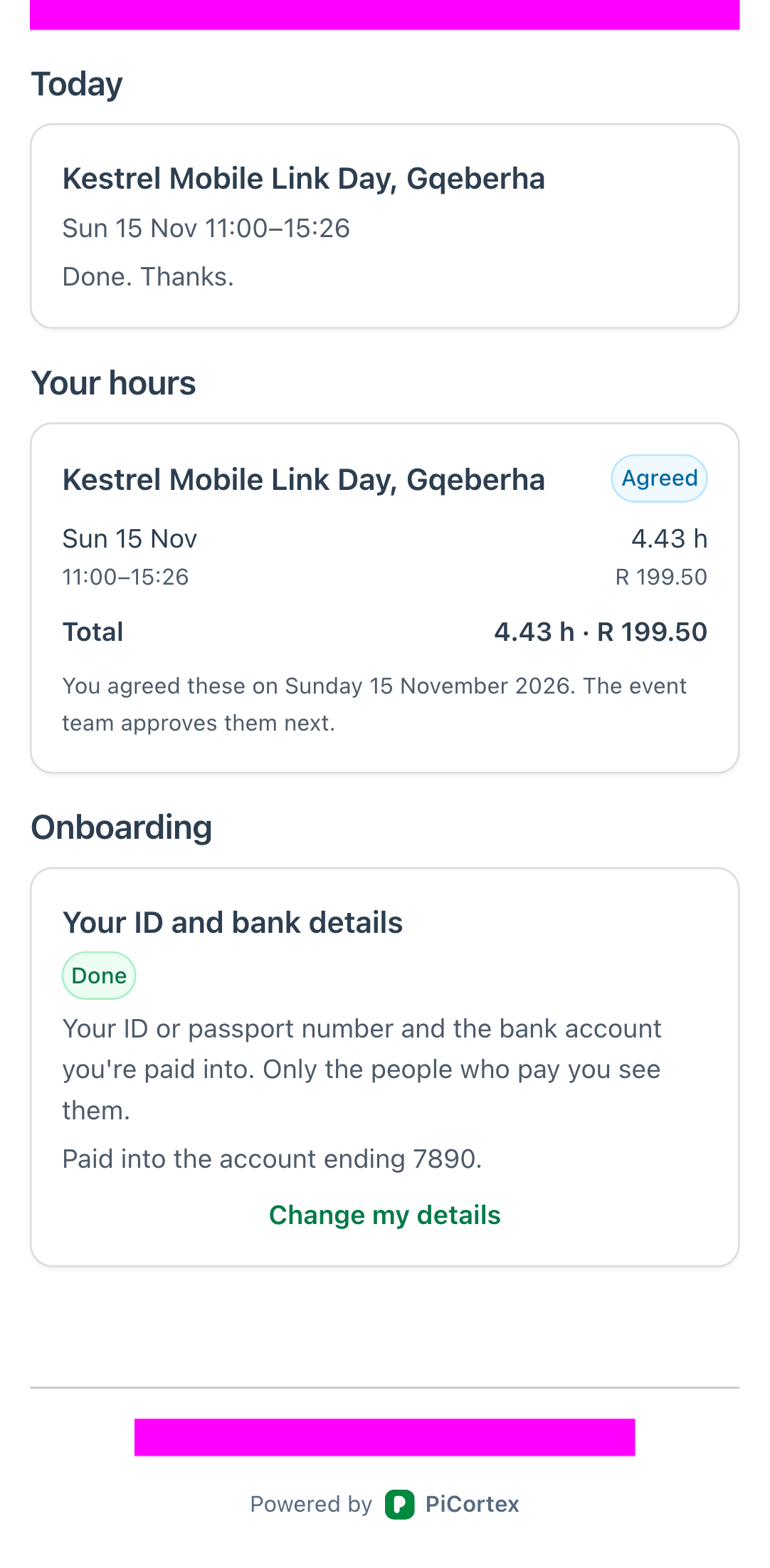
- Agree and sign: they sign in the box, then tap Agree.
- Something's wrong: they say what, and tap Send. You see their query on the event, fix the time, and they're asked to sign again.
If their hours change after they've agreed (a time corrected, a shift moved, another shift booked), their agreement is cleared and they're asked to sign again.
The WhatsApp only goes to a verified number. A promoter without one sees their hours the next time they open their link.
Your saved signature
Before you approve, draw your signature once: go to Settings, Your profile, and under Your signature click Draw your signature. Only you can use it. It goes on every timesheet you approve, and only after you tick to sign each batch.
Approve and sign
On the event, open Staffing. Timesheets is the third card, below Who's working and Where they work. It opens on its own once there are timesheets; click its header if it's closed.
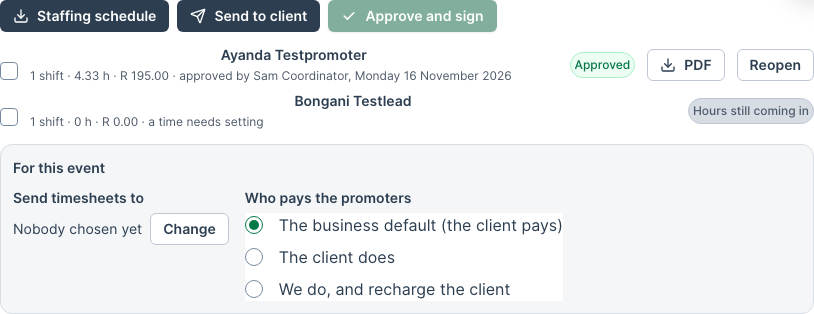
- Tick the promoters whose timesheets you're approving.
- Click Approve and sign.
- For anyone who hasn't agreed, say why you're approving anyway. It prints on their timesheet.
- Tick Sign … with my saved signature, then click Approve and sign.
If some can't be approved, the window says which and why; the ones that went through drop off your selection, so clicking again never approves them twice. A reason can be up to 250 characters.
The promoter is told by WhatsApp that their hours were approved. The approved hours, pay and rates are fixed on the timesheet: a later rate change doesn't rewrite them, on the PDF, the staffing schedule or the month. Once a timesheet is approved, its time can't change and no shift or check-in can be added for that promoter on the event; click Reopen and say why first. Reopening one that was already added to the sales order takes its line off the order (unless the order is complete or paid: correct the order first), so it's recharged afresh once approved again.
Each approved timesheet has a PDF: the promoter's details, ID number and bank details, each day's hours, both signatures, and who approved it. It says PDF being made for a moment after approval. If it couldn't be made, it says PDF couldn't be made: click Download to try again. Only Administrators, HR and Finance can open it.
Send to the client
Choose who gets the timesheets under Send timesheets to: one of the event client's contacts with an email address. Only Administrators, HR and Finance can choose them, because the timesheets print each promoter's ID and bank details. If the contact's email address changes afterwards, choose them again to confirm it before sending.
Send to client shows who, the address and what, then emails every approved timesheet and the event's staffing schedule when you click Send. The email is kept on the client's messages. If the connection drops while sending, check the client's messages before trying again; trying again from the same window never sends it twice.
The client's copies show the rate and totals for whoever pays the promoters. When the client pays them, it's the promoters' pay. When you pay them and recharge the client, it's what you charge: the pay plus your staffing markup, the same amounts as the sales order lines. Your own copy, and the promoter's, always show the pay.
Add staffing to the sales order
When you pay the promoters and recharge the client (Who pays the promoters is We do, and recharge the client), Add staffing to the sales order adds one line per approved timesheet to the event's sales order: the approved pay plus your staffing markup. It shows the lines and total first. A timesheet already on the order isn't added twice.
The default for who pays, and the staffing markup, are in the promoter settings on Promoters. Only the cost departments see the markup.